


How to Add Music to iMovie from YouTube [Quick Guide]
Looking to enhance your iMovie projects with the perfect soundtrack? While iMovie's built-in audio options are convenient, they can feel limited. You might wonder, can you add music to iMovie from external sources such as YouTube? The direct import isn't possible due to streaming protections. Don't worry. This guide provides a step-by-step solution on how to add music to iMovie from YouTube on your Mac, iPhone, or iPad. Let's get started and bring your video vision to life.
Part 1. Can You Add Music to iMovie?
Yes. iMovie allows you to easily import songs from your device's music library or audio files from your local storage. It supports common formats including MP3, WAV, M4A, AIFF, and AAC.
However, adding music directly from streaming services like YouTube is not that easy. Due to copyright protection and technical restrictions, you cannot simply import songs from YouTube or YouTube Music into iMovie. The solution is to download the music from YouTube first and save it on your device as a compatible audio file, such as an MP3. To do this quickly and efficiently, you can use a dedicated YouTube converter. We will introduce how to download YouTube Music to MP3 in the following part.
Part 2. Download Music from YouTube for Editing in iMovie
As we mentioned above, to add music from YouTube to iMovie, you first need to download the audio and convert it into a compatible format, such as MP3. Tidabie Music Go provides a straightforward solution for this.
Tidabie Music Go is a professional desktop tool for downloading and converting audio from streaming services. It allows you to download music, playlists, and podcasts from platforms like YouTube, YouTube Music, Spotify, and Apple Music. It supports exporting audio into multiple common formats, including MP3, AAC, WAV, FLAC, etc, which are all compatible with iMovie. Tidabie can batch download entire playlists and convert files at up to 10x speed. It preserves the original audio quality and retains all ID3 tags, such as title, artist, and album, keeping your music library organized. Tidabie Music Go also includes free useful utilities such as AI Audio Splitter, Tag Editor, Format Converter, etc, providing a comprehensive toolkit for preparing music for your iMovie projects.

Tidabie Music Go
- Download songs, albums, and playlists from YouTube, YouTube Music, SoundCloud, Spotify, Amazon Music, Apple Music, TIDAL, Qobuz, etc.
- Convert YouTube Music to MP3, AAC, WAV, FLAC, AIFF, and ALAC.
- Batch download YouTube Music at up to 10x speed with original quality.
- Keep ID3 tags for YouTube Music, such as title, album, and artist.
- Freely enjoy podcasts online and download podcasts.
- Listen to radio shows and record radio freely.
How to download YouTube Music to MP3 with Tidabie?
Follow the steps below to download songs from YouTube to MP3.
STEP 1 Select to Download from YouTube Music or YouTube
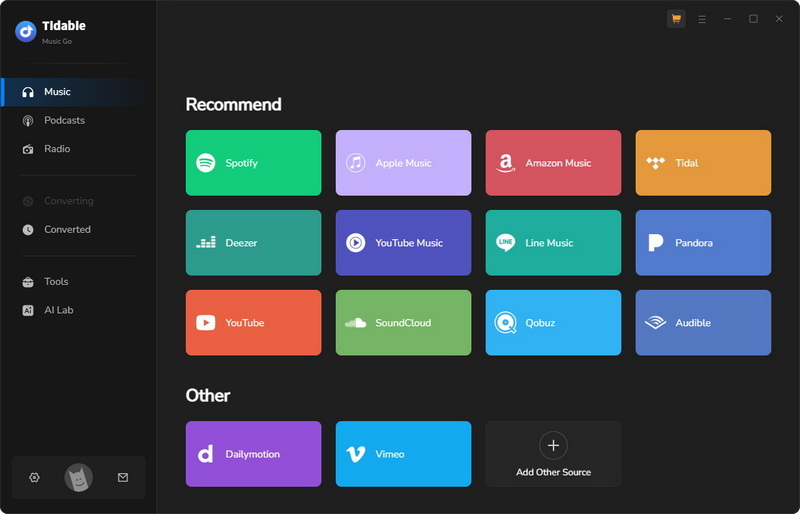
Launch Tidabie Music Go. From the home screen, select "YouTube Music". A built-in web player will open. Log in to your account if necessary to access your playlists and library.
📒Note: There are two downloading sources provided. To download content specifically from the YouTube Music streaming service, select "YouTube Music". If you wish to download content from YouTube videos, choose the "YouTube" source instead.
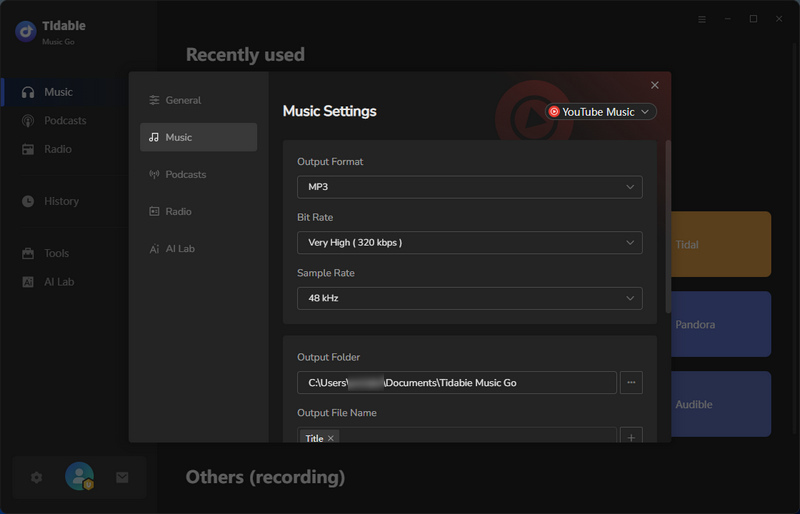
STEP 2 Configure YouTube Settings
Before downloading, click the "Settings" button to adjust your output preferences. Here, set the output format to MP3 to ensure compatibility with iMovie. You can also customize the conversion mode, bit rate, sample rate, output folder, and set how you'd like the downloaded files to be organized.
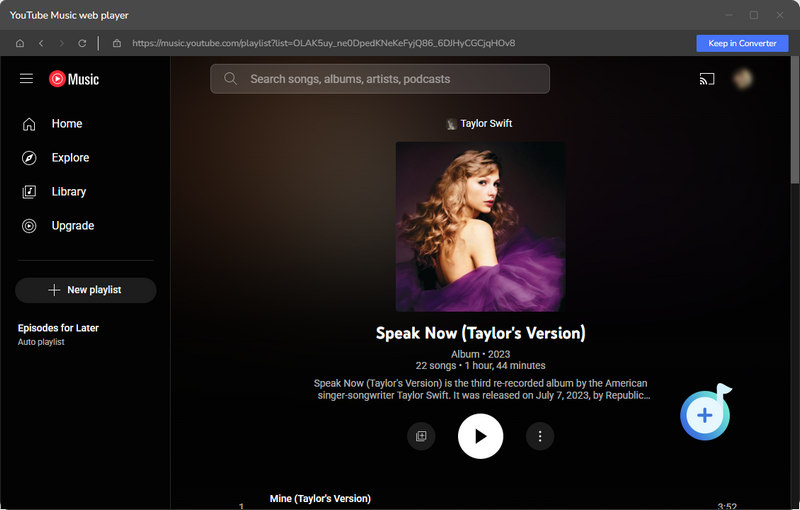
STEP 3 Add YouTube Music to Convert
Browse your music in the web player. When you find a song, album, or playlist you want, click the "+" button in the bottom right corner. Tidabie will analyze the content. In the pop-up window, check the specific tracks you wish to download and confirm by clicking "Add".
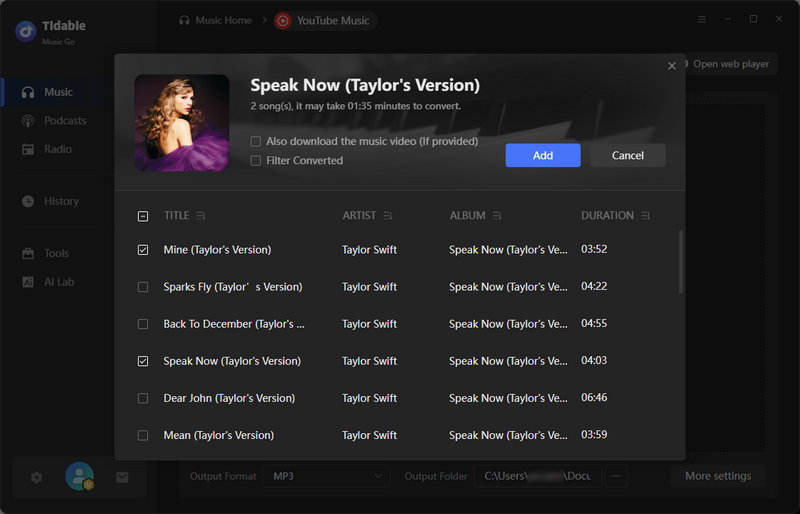
STEP 4 Download YouTube Music to MP3
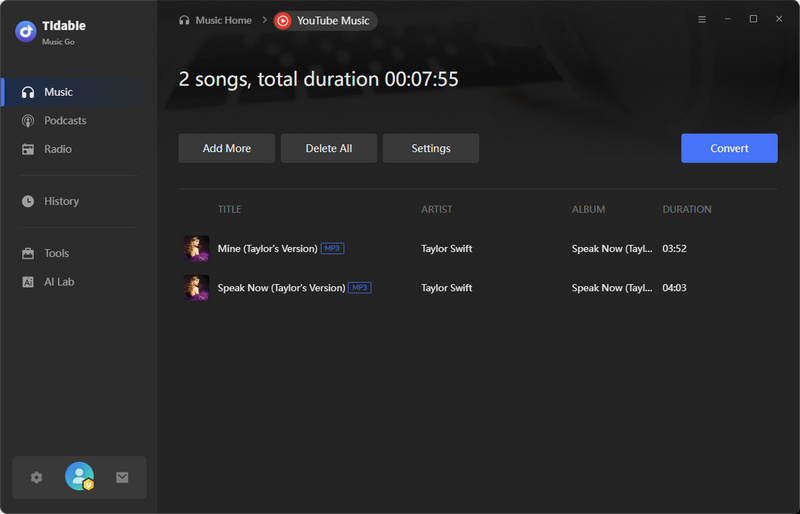
You can repeat this to build a batch conversion list by clicking "Add More". Once finished, click the "Convert" button to start the process. Once the conversion is complete, you can find the ready-to-use MP3s in your designated output folder. These files are now perfectly formatted for import into your iMovie project.
Part 3. Add YouTube Music to iMovie on Mac/iPhone/iPad
Once you have downloaded your chosen YouTube Music as an MP3 file using a converter like Tidabie Music Go, adding it to your iMovie project is a simple process. The steps vary slightly depending on whether you are using a Mac, iPhone, or iPad.
🌐Add YouTube Music to iMovie on Mac
The Mac version of iMovie offers a flexible, timeline-based editing experience.
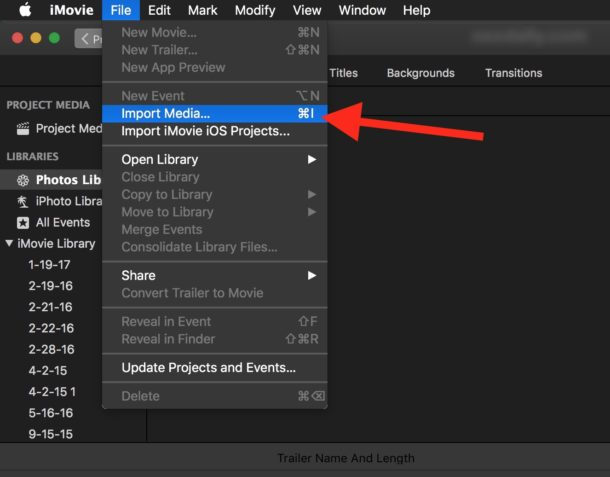
STEP 1 Launch iMovie and open your project. Go to File > Import Media from the menu bar.
STEP 2 In the window that opens, find and select the MP3 files you downloaded. You can select multiple files at once. Click "Import Selected".
STEP 3 The imported audio will appear in the "Audio" section of your media library. Click and hold the desired song, then drag it down to your project timeline. For background music, place it on the primary timeline below your video clips. A green line with a "+" sign will appear when you're in a valid position. Release the mouse button to drop it.
📲Add YouTube Music to iMovie on iPhone/iPad
The mobile version of iMovie is streamlined for touch. First, ensure your MP3 file is on your device, whether you transfer via AirDrop or save from an email or iCloud Drive in advance.
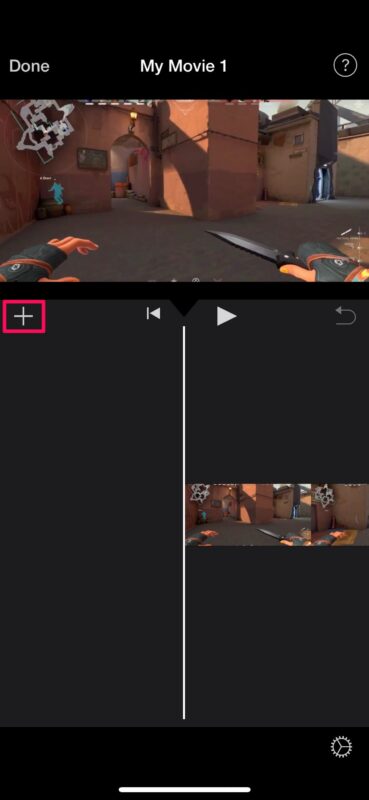
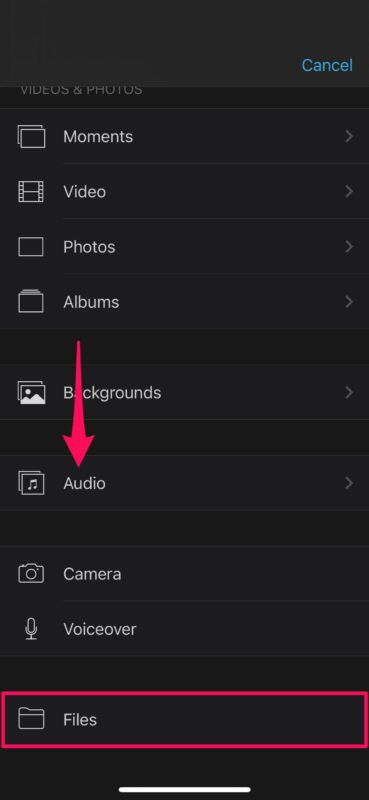
STEP 1 Open your iMovie project and tap the "+" button. Select "Files" to select the MP3 directly from your Files app. If you have previously synced the MP3 files to your device's official Music library via iTunes or Finder on a computer, tap "Audio" > "My Music" to add them.
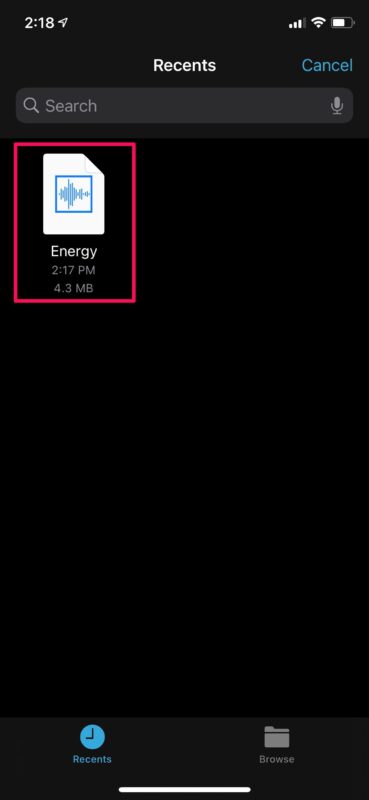
STEP 2 Navigate to the folder where your downloaded MP3 is located. Tap the audio file to preview it. Once satisfied, tap the "+" icon next to it. The song will be added to the beginning of your timeline.
Part 4. FAQs about Adding Music to iMovie
Q1: Why doesn't iMovie let me use Apple Music?
iMovie cannot directly use songs from the Apple Music streaming service due to DRM protection. This encryption prevents the audio files from being copied or used in other applications, like video editors. To use a song from Apple Music, you first need to convert and save it to your device in a common format such as MP3. A tool like Tidabie Music Go can download and convert Apple Music tracks into iMovie-compatible files.
Q2: Can I import a song from Spotify to iMovie?
No, you cannot import songs directly from Spotify for the same reason as Apple Music, which is DRM protection. Spotify's audio files are locked to its app. To use a Spotify song in iMovie, you must use a third-party converter like Tidabie to download Spotify to WAV, MP3, or other common formats as a local file before importing it into your project.
Q3: Why can't I hear the background music on iMovie?
If you can't hear your background music, check these common issues:
- The audio clip is muted. Click on the audio clip in your timeline and ensure the speaker icon is not muted.
- Volume is too low. Select the audio clip and adjust the volume line that appears above it.
- File format is incompatible. Ensure your music file is in a format iMovie supports, such as MP3 or WAV. If not, re-convert the file with Tidabie's built-in free format converter to fix this.
Q4: How do I change the background music in iMovie?
To change the background music, first select the existing audio clip in your timeline and press the Delete key. Then, import your new audio file and drag it to the timeline where you want it to start. If your new song comes from a streaming service, remember to use a downloader like Tidabie to get a usable file first.
Conclusion
This guide has shown you how to add music to iMovie from YouTube easily by first converting songs to MP3 files. The key to this simple process is using the right tool. Tidabie Music Go makes downloading and converting music quick and reliable, ensuring perfect compatibility with iMovie. Stop searching for workarounds, try Tidabie Music Go to freely use any YouTube song as your video's soundtrack.

Jacqueline Swift | Senior Writer
