


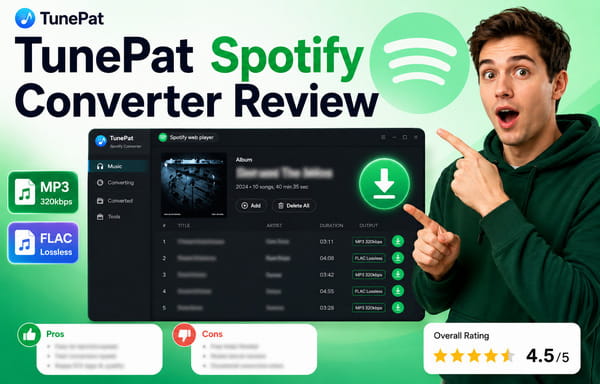
TunePat Spotify Converter Review 2026: Is It Truly Lossless?
If you've been googling honest reviews of the TunePat Spotify Music Converter, you probably noticed something really weird. On tech forums, real users praise it as a solid, lossless backup tool. But if you look at some top-ranking review sites—which are often run by direct competitors—they claim TunePat is buggy, lags behind, caps your music at a mediocre 256kbps, and will get your Spotify account banned instantly.
So, what’s the real story here? Is TunePat actually a great premium tool, or are competitor scare tactics tricking you?
The music converter market is incredibly competitive right now, and honestly, a lot of brands love using outdated data or fear-mongering to push you toward their own apps. To cut through all the noise, I decided to find out for myself. I bought the latest version of TunePat and put it through a real hands-on test. Let's check out my real testing results to see how it actually holds up.
- Part 1. What is TunePat Spotify Converter? (2026 Updated Overview)
- Part 2. Key Features & Lab Testing Results
- Part 3. Step-by-Step Guide: How to Export Lossless Audio via TunePat
- Part 4. Critiques & Truth: Analyzing Real User Feedback (Trustpilot vs. Competitor Bias)
- Part 5. Is TunePat Worth It in 2026?
Part 1. What is TunePat Spotify Converter?
Before I dive into my real-time testing charts, let’s clarify exactly what this software does under the hood and why its technology differs fundamentally from the free tools scattered across the internet.
At its core, TunePat Spotify Music Converter is a desktop-based software designed for both Spotify Free and Premium users to convert protected audio streams into widely compatible formats. According to TunePat’s official product specifications, the tool allows you to convert and save Spotify tracks, playlists, albums, and podcasts into standard audio formats like MP3, AAC, WAV, FLAC, AIFF, and ALAC.
Part 2. Key Features & Lab Testing Results
FEATURE 1 Dual Audio Sources: App Mode vs. Web Player Mode
When you first open TunePat, you'll see an Audio Source option on the main screen. It lets you choose where to download your music from: the Spotify Web Player or the desktop Spotify App. A lot of tools out there only let you use the web player, so having this dual-option is a huge plus. Here is how the two modes feel in daily use:
- The Spotify Web Player Source: Super convenient for quick downloads. It runs inside a built-in browser window, so you don't even need the Spotify app installed on your computer. It maxes out at a standard 320kbps MP3, which is plenty for regular listening.
- The Spotify App Source: This is the one to use if you want top-tier 24-bit/44.1 kHz FLAC Lossless audio. Importing music is seamless—you can just drag and drop tracks directly, paste a URL link, or click the floating Add [+] button. Plus, this mode lets you adjust the download speed to 1X, 5X, or 10X, which helps keep everything stable when downloading massive playlists.

FEATURE 2 Real Lossless 24-bit FLAC Audio Quality
Since TunePat advertises true Lossless download support, I was excited to see if it actually delivers. In my first few test runs, I was a bit confused because the output files kept showing up as standard 16-bit/44.1kHz. I reached out to their support team about this quality bottleneck, and they gave me a great tip: make sure the original source song on Spotify is actually available in 24-bit first. That was a total lightbulb moment for me — not every track on the platform has been upgraded to 24-bit high-res yet.
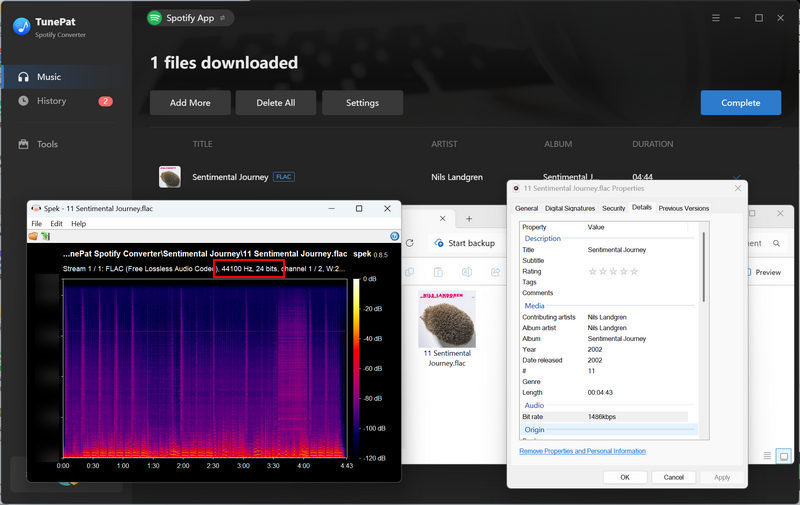
To verify this, I hunted down a confirmed native 24-bit album (Sentimental Journey by Nils Landgren) and restarted my test. This time, everything worked flawlessly. TunePat successfully exported genuine, bit-perfect 24-bit FLAC downloads. The lossless quality is absolutely real, easily outperforming standard web-player downloaders that often cap your audio at compressed 256kbps or 320kbps MP3s.
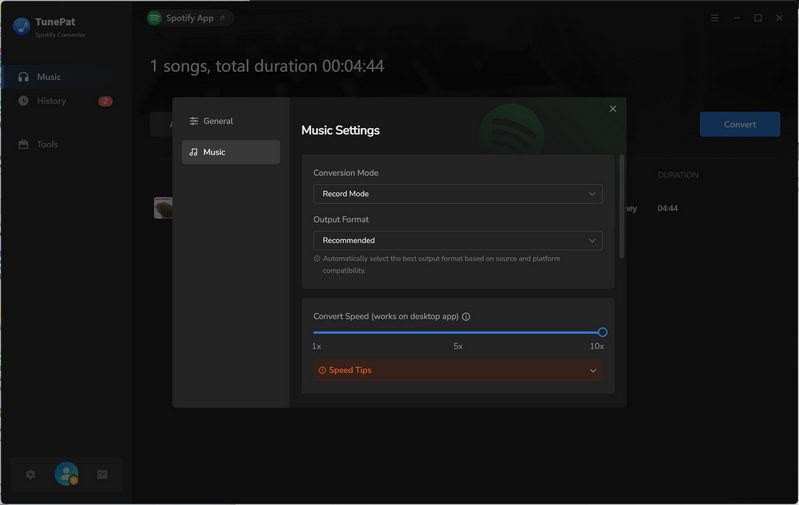
💡 Quick Tip from Support: For the absolute best audio fidelity, go to settings and set your Conversion Mode to "Record Mode" and your Output Format to "Recommended". This ensures the software extracts the exact original audio source file.
FEATURE 3 10X Speed & Customizable Speed Limits
As I mentioned earlier, if you use the Windows version with the Spotify App source, TunePat lets you manually adjust the conversion speed anywhere from 1X to 10X. This is a massive plus for keeping things stable. For my testing, I decided to play it safe and set the speed limit to 5X. I clocked the download time for a 4-minute and 41-second track: it took exactly 53 seconds to finish, which perfectly matches the 5X speed claim. Keep in mind that since true lossless files are much larger than compressed MP3s, the file size will slightly affect the total processing time.
FEATURE 4 Lyrics Download & ID3 Tag Preservation
If you love singing along, there is a "Save lyrics (if provided)" option under Settings > Music. I toggled this on, and my tests showed that both the App and Web Player sources successfully downloaded lyrics as .lrc or .txt files, depending on what the track originally offered. Even better, the lyrics are automatically saved in the exact same output folder as your songs, making library management a breeze.
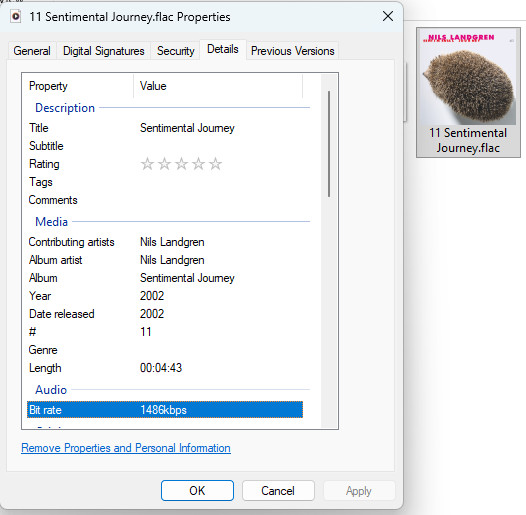
As for the metadata, I inspected the downloaded FLAC files to see if the ID3 tags held up. The results were flawless — it accurately preserved the title, album artist, contributing artists, year, release date, track number, and the original high-res cover art. If you are meticulous about organizing your local media library, you will be highly satisfied with how clean the exported data is.
FEATURE 5 Handy Extra Features: Smart Folders & Audio Toolbox
During my deep dive, I stumbled upon a few other highly practical features. First is the flexible Output Organized setting. If you have a massive music collection, you’ll love this: you can sort your downloads using any combination of artist, album, playlist, or year. For example, if you set it to "Artist / Album", TunePat will automatically create a main folder for an artist like Taylor Swift, with all her individual album folders neatly arranged inside. It makes organizing an offline library incredibly easy.
Another pleasant surprise is the built-in Tools panel. TunePat packs some surprisingly powerful multi-functional audio tools right into the software, saving you from having to download extra third-party apps:
- AI Audio Splitter: Perfect for removing vocals from a track to make quick karaoke or backing tracks.
- CD Burner: A great legacy feature for burning your downloaded songs directly onto a physical CD for car stereos.
- Tag Editor: Allows you to manually tweak or rewrite audio metadata on the fly.
There are a few other tools in there too, but these three are definitely the main highlights for any music lover.
Part 3. How to Export Lossless Spotify Audio via TunePat
Getting started with TunePat is pretty straightforward. Here is my quick guide on how to download and build your offline music library from scratch.
STEP 1 Select Your Audio Source
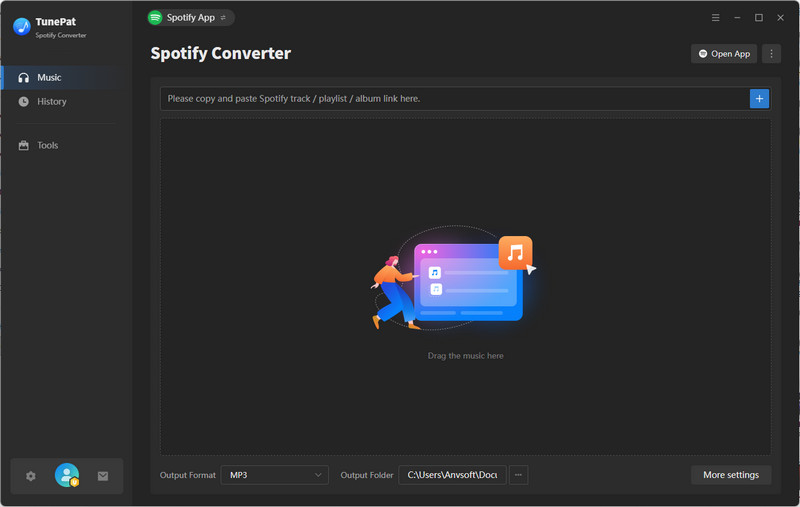
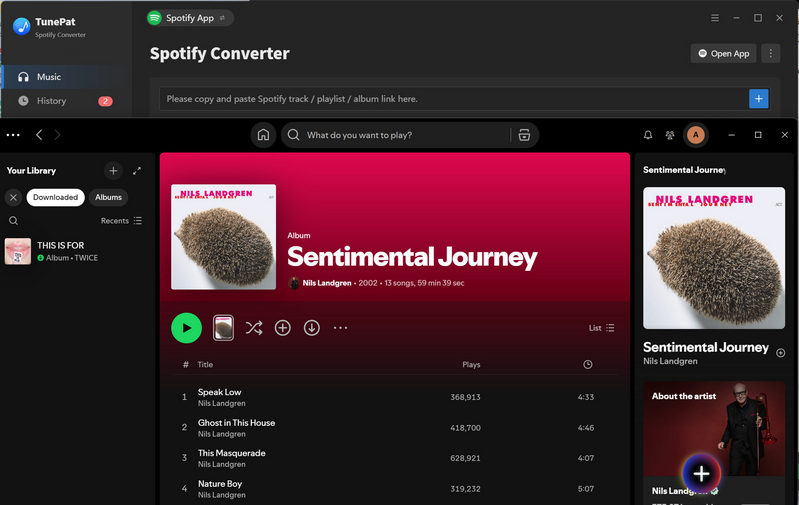
Fire up TunePat on your computer. First, you'll need to choose your preferred Audio Source. Make sure to select "Spotify App" here if you want to tap into those true 24-bit lossless audio streams.
STEP 2 Add Music to the Queue
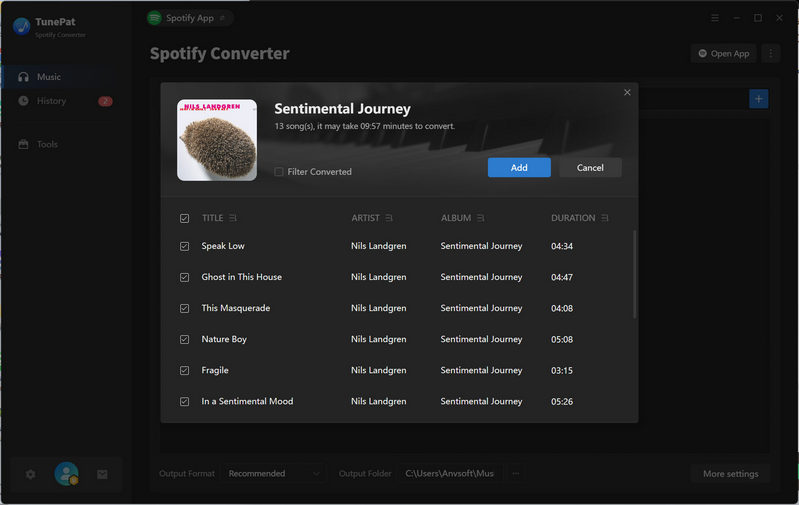
Find the song, album, or playlist you want to grab, and click the floating Add [+] button. TunePat will quickly parse the link and show you a list of tracks with checkboxes. Tick the songs you want, then click "Add" to load them up.
STEP 3 Configure Output Settings
Head over to the "Settings" gear icon. This is where you can customize your output parameters. To get that studio-level audio, make sure to set the conversion mode, format, bit rate, and sample rate to your liking, and pick your target output folder.
STEP 4 Start the Conversion
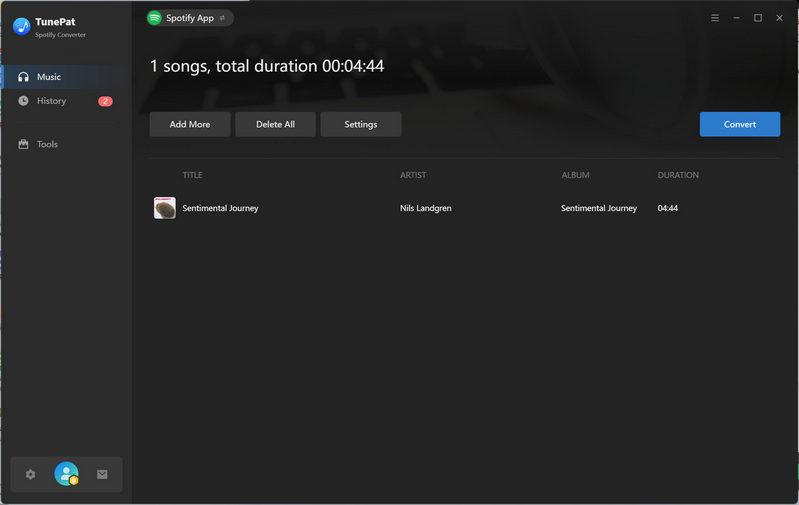
If you have more albums to queue up for a huge batch download, just click "Add More". Otherwise, hit "Convert" to kick off the process. The tool will download everything at high speed. Once it's done, you can find your perfectly organized files in your destination folder or check them out under the "History" tab.
Part 4. Critiques & Truth: Analyzing Real User Feedback
While my personal tests turned out great, I also wanted to see how other users feel about the software. On Trustpilot, TunePat currently holds a solid 4.3 out of 5 rating with over 400 reviews, showing that the vast majority of users are happy with its performance. However, no software is perfect. To keep this review completely objective, let’s look into some of the common negative feedback and common complaints online to see what’s real and what might just be user error or outdated information.
1. Temporary Glitches Caused by Streaming Platform Updates
This is by far the most common pain point across the entire music conversion industry. Whenever streaming giants like Spotify tweak their encryption protocols or roll out major UI layout updates, conversion tools can suddenly suffer from parsing errors or failed downloads.
During my analysis of TunePat's one-star reviews, I noticed that these complaints are highly time-sensitive. For instance, some users reported sudden conversion failures during specific platform updates, as seen in this Trustpilot user feedback.
My Take: This is an unavoidable cat-and-mouse game for all third-party downloaders. The good news is that these glitches are usually temporary. Based on TunePat's official support logs, their dev team typically pushes out a hotfix or software update within a few days to get things running smoothly again. If you ever run into a sudden error, checking for a software update usually fixes it.
2. Account Safety Concerns and Risk Controls
A minor concern among heavy users is the risk of triggering streaming platform detection when downloading massive playlists at high speeds in a short period.
Some users worry about receiving warnings or temporary account suspensions from platforms like Spotify for utilizing non-official clients. However, looking at the broader market, while many alternative Spotify downloaders are flooded with severe complaints about account bans, TunePat tells a completely different story. During my deep dive into their negative feedback, I found that such complaints are incredibly rare — in fact, I only managed to hunt down a single review from 2024 mentioning this issue (Trustpilot user feedback).
My Take: Curious about how they maintain such a clean safety track record, I reached out to TunePat's support team. They replied with an incredibly detailed and patient email (major props to their customer service!). They clarified that there is no direct evidence linking the normal use of TunePat to account bans. More importantly, they actively acknowledge user anxieties regarding high-speed conversions and have already rolled out a robust set of built-in protective measures:
- Customizable Conversion Speed: As tested in Feature 3, you can manually throttle the speed (like dropping from 10X to 1X) to perfectly simulate normal streaming patterns and fly under the radar.
- No-Login Conversion Option: You can actually download music without logging into your Spotify account at all. It works similarly to free online tools by fetching tracks from alternative public platforms — though keep in mind, the audio quality will take a slight hit compared to the true lossless client feed.
- Account Data Backup & Recovery: This is a fantastic new feature. It allows you to completely back up your Spotify playlists, liked songs, and account settings locally, so you can easily migrate them to a fresh account with just one click if needed.
The support team also reassured me that if any user ever runs into account issues, they can contact them immediately for direct technical assistance. Overall, it’s clear to me that this team is deeply committed to user security and is highly proactive in engineering real, practical safeguards rather than just ignoring user worries.
3. Customer Support Response and Communication Cycles
Some users who encounter technical glitches express frustration regarding communication efficiency or the speed of the refund process.
When a sudden error occurs, a few users feel that email-only support takes too long to resolve back-and-forth troubleshooting, especially due to time zone differences. Others feel that the refund workflow could move quicker, as seen in this Trustpilot user feedback.
My Take: To get to the bottom of this, I carefully read through TunePat's official refund policy on their website. They actually have a very clear framework: a 5-day money-back guarantee for short-term subscription plans (1-month, 3-month, 12-month) and a 30-day money-back guarantee for Lifetime licenses. They also promise refunds if the software hits a major technical issue that their team simply cannot fix. To me, that seems completely fair for a software company.
Looking closer at their Trustpilot presence, TunePat maintains a 100% reply rate to negative reviews, usually stepping in within 24 hours with concrete solutions or custom installation packages. In their responses to refund complaints, the team points out that the processing window heavily depends on the user's payment method and bank efficiency, typically taking 3 to 10 business days to reflect. While email support isn't instant, the team is clearly checking their inbox and resolving cases rather than ghosting customers.
The Verdict: Is TunePat Worth It in 2026?
After putting TunePat through its paces, I can confidently say it’s one of the most reliable backup tools on the market right now. It completely sidesteps the 256kbps compression trap that plagues many web-only downloaders, and the team's proactive approach to account safety really gives me peace of mind.
No software is flawless, so here is a quick, honest summary of the pros and cons based on my hands-on experience:
| 👍 What I Loved (The Pros) | 👎 What to Consider (The Cons) |
|---|---|
|
|
Final Recommendation: If you are a casual listener who just wants a few quick MP3s, a free online site might do. But if you are an audiophile, a music collector, or someone who wants a secure, long-term archive of their playlists in absolute peak fidelity, TunePat Spotify Converter is absolutely worth the investment. I highly recommend downloading the free trial to test out your favorite high-res albums first!

Jacqueline Swift | Senior Writer
