



8 Best Spotify to Apple Music Playlist Converters (Free & Paid)
Want to switch from Spotify to Apple Music but don't want to lose the playlists you've spent years building? A Spotify to Apple Music playlist converter makes it easy to move your favorite songs and playlists without adding each track manually, saving you time and effort when switching platforms.
However, not all Spotify to Apple Music playlist converters work equally well. Some offer fast transfers and accurate song matching, while others limit playlist size or available features. In this guide, we'll show you how to transfer Spotify playlists to Apple Music using Apple's built-in transfer feature, compare the 8 best Spotify to Apple Music playlist converters, and explore an alternative way to transfer Spotify playlists to Apple Music. Let's take a look.
📌 How to Transfer Spotify Playlists to Apple Music Officially
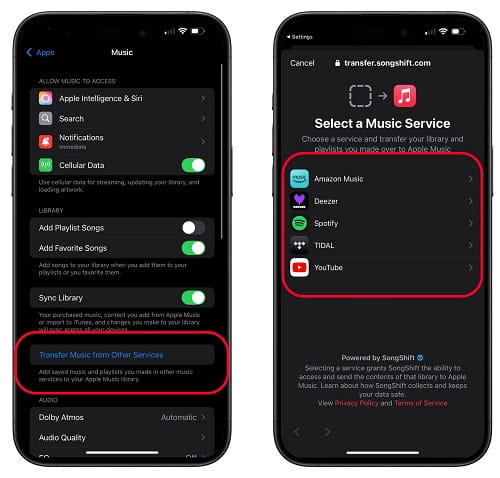
Apple Music now offers a built-in music transfer feature that allows you to move songs, albums, and playlists from Spotify to Apple Music at no additional cost. It is available on iPhone, iPad, Android, and the web. All you need is an active Apple Music subscription, access to your Spotify account, and Sync Library enabled.
Follow the steps below to transfer your Spotify playlists to Apple Music directly:
STEP 1 Open the Apple Music app or visit music.apple.com and sign in to your Apple Account.
STEP 2 Open your profile or account settings and select "Transfer Music from Other Services" or "Transfer Music", depending on your device.
STEP 3 Select Spotify as the source music service, sign in to your Spotify account, and authorize access.
STEP 4 Select the songs, albums, or playlists you want to transfer and tap or click "Add to Library".
STEP 5 Once the transfer is complete, check your Apple Music library. If any tracks need review, select "Review Now" to choose alternative matches or skip unavailable songs.
- Availability varies by country or region (not available in China Mainland, Myanmar, and Russia).
- Does not transfer playlists created by Spotify itself.
- No automatic playlist synchronization between music services.
While Apple Music's built-in transfer feature is convenient for a one-time migration, dedicated Spotify to Apple Music playlist converters offer more flexibility, such as automatic synchronization, multi-platform transfers, and playlist file imports and exports. Let's explore the eight best options below.
Part 1. Top 8 Spotify to Apple Music Playlist Converters
Not every Spotify to Apple Music playlist converter is built for the same job. Some are designed for one-off transfers of small playlists, while others handle full-library migrations across desktop or mobile. The tools below cover the full spectrum, from browser-based free options to desktop apps built for large libraries.
1. PlaylistGo – Best Desktop Converter for Large Streaming Libraries with Local Processing
PlaylistGo is a desktop app for users whose streaming collections, including Spotify, Apple Music, Amazon Music, Tidal, Deezer, YouTube Music, SoundCloud, Qobuz, Line Music, and Pandora, have outgrown what browser-based tools can comfortably handle. PlaylistGo connects to your streaming account through official read-only OAuth access, then performs playlist matching and conversion locally on your computer. It says it never stores your passwords and does not upload your personal library to its servers for processing, which is an advantage if privacy matters or your library is in the thousands.
- Platform
- Windows, macOS
- Streaming Service
- Spotify, Apple Music, Amazon Music, YouTube Music, Tidal, Deezer, Qobuz, SoundCloud, Pandora, Line Music
- Import Format
- M3U, M3U8, PLS, XSPF, XML, CSV, XLS, XLSX, JSON, TXT
- Local Processing
- √Supported
How to transfer Spotify to Apple Music with PlaylistGo?
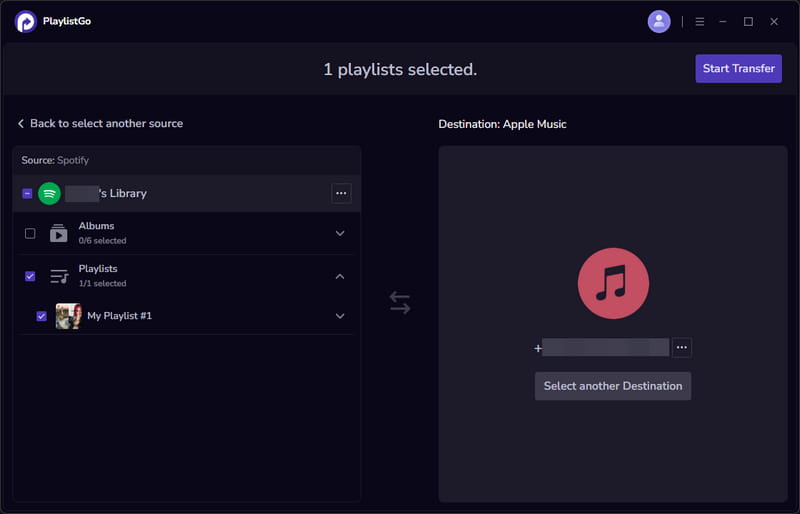
STEP 1 Launch PlaylistGo. On the left side, select Spotify as the source and log in to authorize access. Your Spotify library will appear once connected.
STEP 2 On the right side, select Apple Music as the destination and sign in with your Apple ID.
STEP 3 Check the boxes next to the songs, albums, or playlists you want to move. You can also paste a Spotify playlist URL and click Parse to load it directly.
STEP 4 Click "Start Transfer" in the upper-right corner. PlaylistGo will begin searching Apple Music for matches and will mark any tracks it cannot find. Review the flagged tracks and manually search for a replacement or skip them.
STEP 5 Click "Start Transfer" again to execute the final transfer, then open Apple Music to confirm the new playlist appears in your library.
- Supports 10 major music streaming platforms.
- Handles large playlists and bulk library transfers.
- Processes playlist data locally for better privacy.
- Supports importing and exporting multiple playlist formats.
- Allows manual review of unmatched tracks.
- Free trial is limited to 10 tracks per playlist.
- Requires installation on Windows or macOS.
- No mobile app or web-based version.
2. TuneMyMusic – Best Online Spotify to Apple Music Converter for Quick Transfers
TuneMyMusic is a browser-based Spotify to Apple Music playlist converter that lets you move playlists, albums, and favorite songs without installing any software. It supports popular streaming services such as Spotify, Apple Music, YouTube Music, Amazon Music, Tidal, and Deezer. You can also import music using playlist URLs, text, or files. Its free plan allows up to 500 tracks, making it a convenient option for smaller music collections, while Premium unlocks unlimited transfers and automatic playlist synchronization.
- Platform
- Web Browser
- Streaming Service
- Spotify, Apple Music, Amazon Music, YouTube Music, Tidal, Deezer, SoundCloud, Qobuz, Pandora, etc.
- Import Format
- M3U, M3U8, PLS, WPL, XSPF, XML, CSV, TXT
- Local Processing
- ×Not Advertised
How to transfer Spotify playlists to Apple Music with TuneMyMusic?
STEP 1 Visit TuneMyMusic. Select Spotify as the source platform and authorize access to your Spotify account.
STEP 2 Select the Spotify playlists, albums, or favorite tracks you want to transfer. You can also paste a playlist URL.
STEP 3 Choose Apple Music as the destination and connect your Apple Music account.
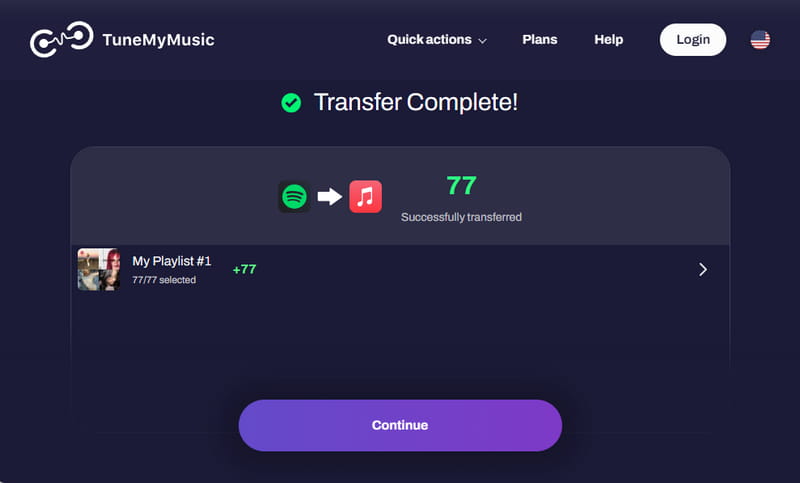
STEP 4 Start the transfer and wait for TuneMyMusic to match your songs. Check the transfer report for any missing tracks.
- No software installation required.
- Transfers up to 500 tracks for free.
- Supports playlist URLs and file imports.
- Offers automatic playlist syncing with Premium.
- Free transfers are capped at 500 tracks.
- Unlimited transfers require a subscription.
- Some tracks may remain unmatched.
3. Soundiiz – Cross-Platform Spotify to Apple Music Playlist Transfer Service
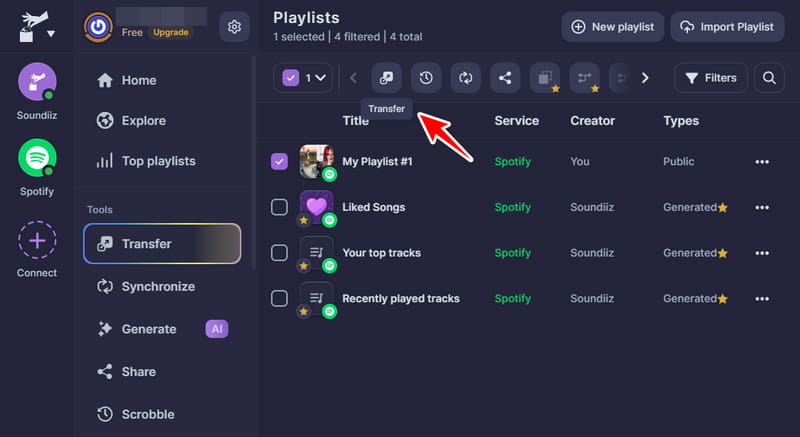
Soundiiz is a feature-rich online playlist converter designed for users who manage music across multiple streaming platforms. Supporting dozens of music services, including Spotify, Apple Music, YouTube Music, Tidal, Deezer, and Amazon Music, it offers playlist transfers, library organization, and synchronization tools. Soundiiz Free allows unlimited playlist transfers one at a time, with up to 200 selected tracks per transfer. Premium users can move multiple playlists simultaneously, transfer favorite albums and artists, and access additional management features.
- Platform
- Web Browser, iOS, Android
- Streaming Service
- Spotify, Apple Music, Amazon Music, YouTube Music, Tidal, Deezer, SoundCloud, Qobuz, and more
- Import Format
- TXT, CSV, XLS, XLSX, JSON, XML, XSPF, M3U, M3U8, WPL, NML, PLS
- Local Processing
- ×Cloud-Based
How to move Spotify playlists to Apple Music using Soundiiz?
STEP 1 Open Soundiiz and create an account or sign in.
STEP 2 Open the Transfer tool and connect your Spotify and Apple Music accounts.
STEP 3 Select the playlists you want to convert and start the transfer. Check the results for any missing songs.
- Supports dozens of music streaming services.
- Offers unlimited eligible free playlist transfers.
- Includes playlist management and sync tools.
- Free transfers are limited to 200 selected tracks each.
- Batch transfers require Premium.
- Advanced features may feel complicated for beginners.
4. SongShift – iPhone App for Spotify to Apple Music Transfers
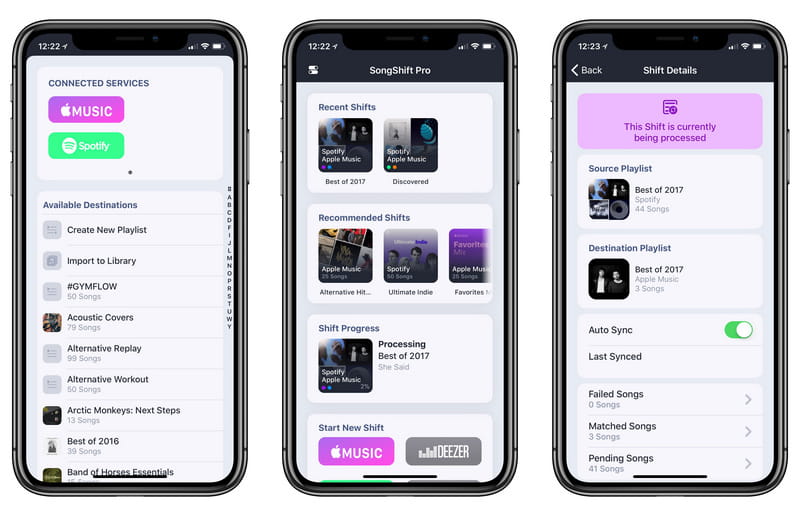
SongShift is a popular iOS playlist transfer app for moving music between Spotify, Apple Music, and other streaming services. It supports playlist, album, and song transfers and provides a match review feature that lets you correct incorrect matches before completing a transfer. Basic transfers are free, while SongShift Pro adds batch setup, faster matching, and ongoing playlist monitoring. Its mobile-friendly interface makes it especially useful for users who want to transfer Spotify playlists to Apple Music directly from an iPhone or iPad.
- Platform
- iOS, iPadOS
- Streaming Service
- Spotify, Apple Music, YouTube, Amazon Music, Tidal, Deezer, SoundCloud, Pandora, Qobuz, and more
- Import Format
- JSON, TXT (Pro)
- Local Processing
- ×Cloud-Based
How to transfer Spotify music to Apple Music on your iPhone with SongShift?
STEP 1 Install SongShift from the App Store and connect your Spotify and Apple Music accounts.
STEP 2 Tap the "+" button to create a new Shift. Select Spotify as the source and choose the playlists you want to transfer.
STEP 3 Set Apple Music as the destination. Let SongShift find matching songs and review any mismatches.
STEP 4 Confirm the transfer and open Apple Music to check the imported playlists.
- Free basic playlist transfers.
- Simple interface for iPhone and iPad.
- Allows users to review incorrect matches.
- Supports playlist monitoring with Pro.
- Not available for Android or Windows.
- Batch setup requires a Pro subscription.
- Large transfers may take longer.
5. FreeYourMusic – Spotify to Apple Music Library Transfer Tool
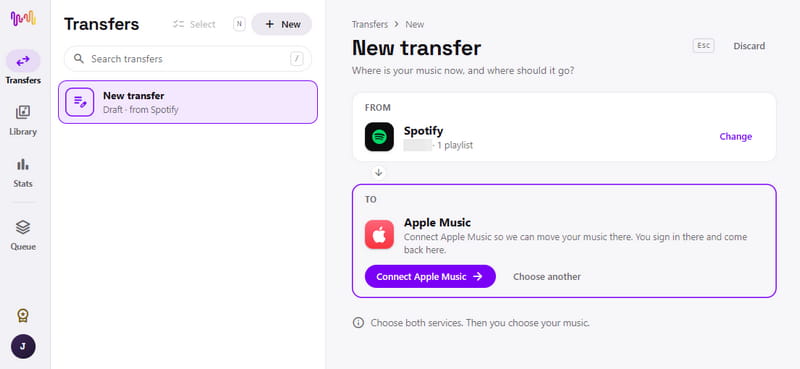
FreeYourMusic is a cross-platform music transfer service that helps users migrate playlists, liked songs, albums, and artists between Spotify, Apple Music, and other streaming platforms. Its current web and mobile transfer service allows users to move their music for free without a song-count limit. Transfers run on its servers, so you can close the app while the process continues. FreeYourMusic also offers a Pro plan with automatic playlist synchronization and additional music management tools, making it suitable for users who want to maintain music collections across multiple services.
- Platform
- Web Browser, iOS, Android
- Streaming Service
- Spotify, Apple Music, Amazon Music, YouTube Music, Tidal, Deezer, SoundCloud, Qobuz, and more
- Import Format
- CSV, XLSX, TXT (Pro)
- Local Processing
- ×Cloud-Based
How to transfer your Spotify music library to Apple Music with FreeYourMusic?
STEP 1 Open FreeYourMusic in your browser or mobile app and sign in to a free account.
STEP 2 Start a new transfer. Choose Spotify as the source and Apple Music as the destination, then connect both accounts.
STEP 3 Select the playlists, liked songs, or other music collections you want to move.
STEP 4 Click "Start transfer". Review the results and use the matching tools to correct any tracks that were not transferred correctly.
- Offers free transfers without song-count limits.
- Supports playlists, liked songs, albums, and artists.
- Continues cloud transfers after closing the app.
- Provides transfer reports and manual rematching.
- Automatic playlist syncing requires Pro.
- Transfers are processed on remote servers.
- Some music may be unavailable on Apple Music.
6. Playlisty – Spotify to Apple Music Playlist Transfer Tool
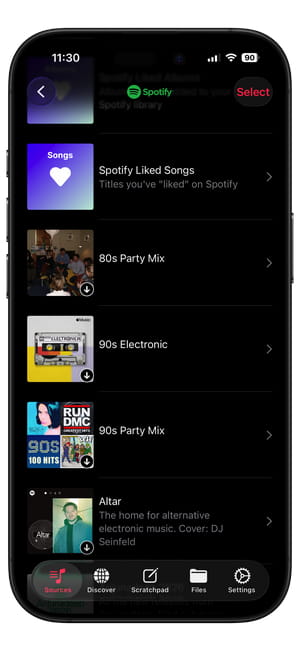
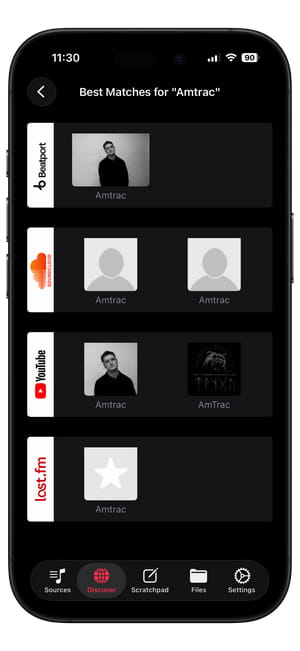
Playlisty for Apple Music is an Apple-focused playlist converter that lets users import Spotify playlists, liked songs, albums, and favorite artists into Apple Music. Instead of automatically accepting every match, Playlisty allows you to preview results and choose alternative tracks when necessary. It also supports importing playlists through URLs, files, and text. The free version limits Spotify playlist imports to 20 tracks per playlist, while a one-time Pro purchase removes this restriction without requiring a recurring subscription.
- Platform
- iOS, iPadOS, macOS
- Streaming Service
- Spotify, Apple Music, YouTube, Deezer, SoundCloud, and other supported sources
- Import Format
- CSV, TSV, M3U, XML, HTML, TXT, PLIF
- Local Processing
- ×Not Supported
How to import Spotify playlists into Apple Music using Playlisty?
STEP 1 Install Playlisty for Apple Music and connect your Spotify account during setup.
STEP 2 Open "Spotify Library" and select the playlists you want to import.
STEP 3 Review the matching results. If any songs are missing or incorrect, select alternative versions before saving.
STEP 4 Tap "Save to your library", choose "Save to a new playlist", and tap "Start". Open Apple Music to check your playlist.
- Offers a one-time purchase instead of a subscription.
- Allows detailed review of song matches.
- Supports playlist links, files, and text imports.
- Integrates with Apple Shortcuts.
- Free Spotify imports are capped at 20 tracks per playlist.
- No Windows or Android version.
- Requires a separate app for transfers out of Apple Music.
7. Switcheroo Transfer – Free Spotify to Apple Music Transfer App
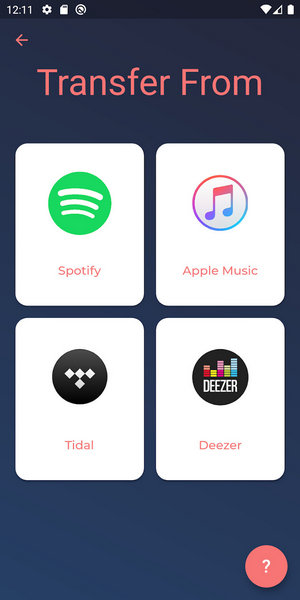
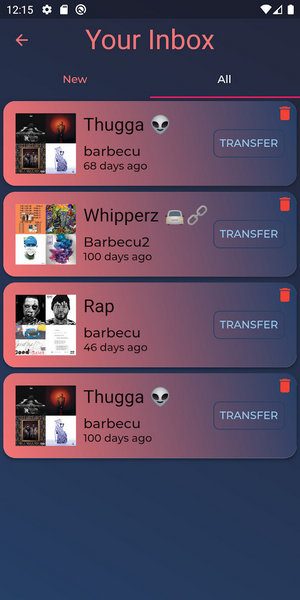
Switcheroo Transfer is a free playlist migration app for iPhone and iPad. It supports transfers between Spotify, Apple Music, Tidal, Deezer, and YouTube, making it a straightforward choice for users who want to switch between popular streaming services. The app guides you through selecting a source, choosing playlists, and connecting a destination account. It also provides a playlist-sharing feature, although it offers fewer advanced management options than tools such as Soundiiz or TuneMyMusic.
- Platform
- iOS, iPadOS
- Streaming Service
- Spotify, Apple Music, Tidal, Deezer, YouTube
- Import Format
- ×File Import Not Advertised
- Local Processing
- ×Not Supported
How to transfer Spotify playlists to Apple Music with Switcheroo Transfer?
STEP 1 Download Switcheroo Transfer from the App Store and launch the application.
STEP 2 Select Spotify as the source service and log in to your Spotify account.
STEP 3 Choose the playlists you want to move and tap "Next". Select Apple Music as the destination and sign in.
STEP 4 Let Switcheroo complete the conversion. Check the results for any songs that could not be transferred.
- Free playlist transfer functionality.
- Simple and beginner-friendly interface.
- Supports five popular music platforms.
- Includes playlist-sharing features.
- Available only on iPhone and iPad.
- Supports fewer services than major competitors.
- No advanced automatic sync tools advertised.
8. Lab86 Music – Free Web-Based Spotify to Apple Music Converter
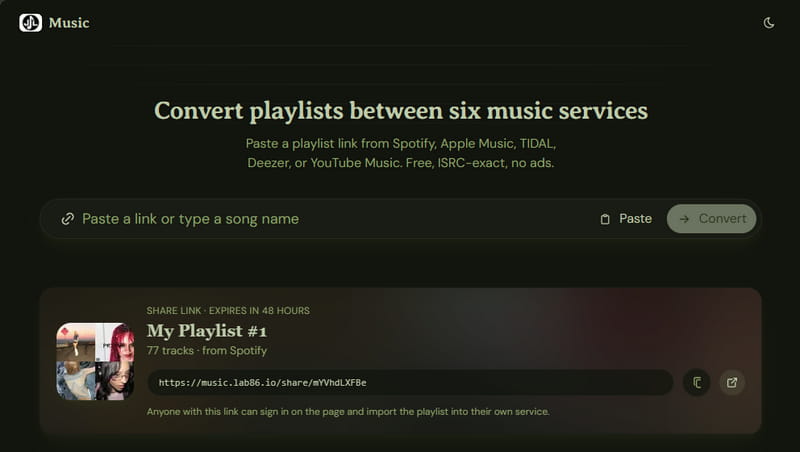
Lab86 Music is a free online music converter that transfers playlists between Spotify, Apple Music, Tidal, Deezer, and YouTube Music. Unlike services that rely mainly on song titles, it prioritizes ISRC identifiers to find matching recordings and uses title-and-artist matching when identifiers are unavailable. Users can paste a playlist link to generate a temporary sharing page or sign in to perform direct transfers. Lab86 Music currently advertises no subscription fees, advertisements, or track limits of its own, making it an interesting option for users looking for a completely free playlist converter.
- Platform
- Web Browser
- Streaming Service
- Spotify, Apple Music, Tidal, Deezer, YouTube Music
- Import Format
- ×Not Supported
- Local Processing
- ×Server-Side Processing
How to move Spotify playlists to Apple Music with Lab86 Music?
STEP 1 Open the Lab86 Music playlist converter in your browser.
STEP 2 Paste a Spotify playlist URL or sign in to connect your streaming accounts for a direct import.
STEP 3 Choose Apple Music as the destination and authorize access when prompted.
STEP 4 Start the import and review the track-matching report. Manually fix any songs that could not be matched correctly.
- Completely free with no subscription fees.
- Uses ISRC identifiers for track matching.
- No software installation required.
- Supports direct imports and temporary playlist sharing.
- Supports fewer playlist services than larger competitors.
- No scheduled playlist syncing advertised.
- YouTube imports are subject to API quotas.
Part 2. Comparison of the Best Spotify to Apple Music Playlist Converters
With so many Spotify to Apple Music playlist converters available, choosing the right one depends on your music library size, budget, preferred device, and privacy requirements. Some tools focus on quick online transfers, while others offer mobile convenience or advanced playlist management features. To help you choose, we've compared these 8 Spotify to Apple Music playlist converters based on their supported platforms, free transfer limits, and batch transfer capabilities.
| Platform | Free Plan / Trial | Batch Transfer | |
|---|---|---|---|
| PlaylistGo ★ | Windows, macOS | 10 tracks/playlist | ✅ |
| TuneMyMusic | Web | Up to 500 tracks | Premium |
| Soundiiz | Web, iOS, Android | 200 tracks/transfer | Premium |
| SongShift | iOS, iPadOS | Basic transfers | Pro |
| FreeYourMusic | Web, iOS, Android | Free, no fixed track limit | ✅ |
| Playlisty | iOS, iPadOS, macOS | 20 tracks/playlist | ✅ |
| Switcheroo Transfer | iOS, iPadOS | Free | ✅ |
| Lab86 Music | Web | Free | ❌ |
Which One Should You Choose?
- For large music libraries: PlaylistGo is a strong option thanks to its local processing, batch transfers, and extensive file import/export support.
- For free online transfers: TuneMyMusic and Lab86 Music are convenient browser-based options, while FreeYourMusic offers free one-time transfers without a song-count limit.
- For iPhone users: SongShift and Playlisty provide convenient mobile playlist management and transfer features.
Part 3. Download and Import Spotify Playlists to Apple Music
If you want more control over your music collection, downloading Spotify playlists as local audio files is another way to move your favorite music to Apple Music. Unlike direct playlist converters, this method imports audio files rather than automatically recreating your Spotify playlists in the Apple Music catalog. You'll need to organize the imported tracks into playlists manually. Tidabie Music Go makes this process easier by allowing you to download Spotify songs, albums, and playlists in MP3, AAC, WAV, FLAC, AIFF, and ALAC formats.
Unlike online playlist transfer services, Tidabie Music Go supports batch downloads, customizable output settings, and playlist organization. It also preserves playlist order and ID3 tags, making it easier to rebuild your music collection after downloading.

Tidabie Music Go
- Download songs, albums, and playlists from Spotify, Amazon Music, Apple Music, TIDAL, YouTube Music, SoundCloud, Qobuz, etc.
- Convert Spotify music to MP3, AAC, WAV, FLAC, AIFF, and ALAC.
- Batch download Spotify songs at up to 10x speed with lossless quality.
- Keep full ID3 tags, such as title, album, and artist.
- Freely enjoy podcasts online and download podcasts.
- Listen to radio shows and record radio freely.
How to Download Spotify Playlists with Tidabie Music Go?
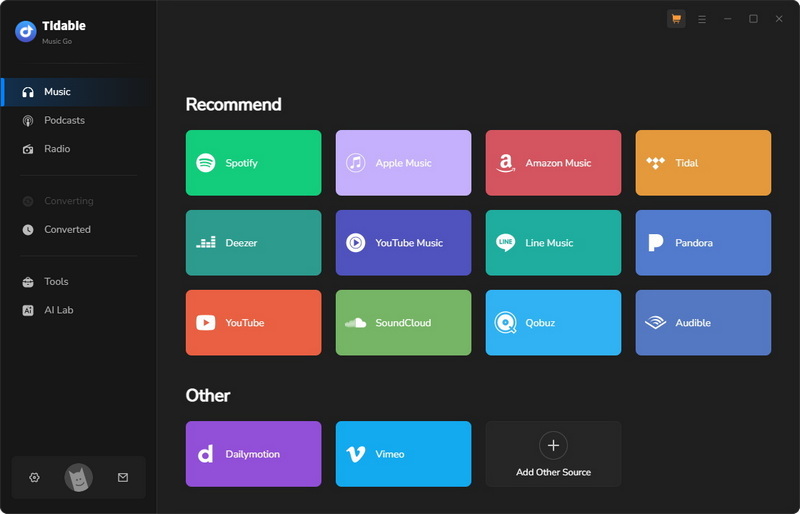
STEP 1 Download and install Tidabie Music Go on your Windows PC or Mac. Launch the program and select Spotify as the music source. Then log in to your Spotify account.
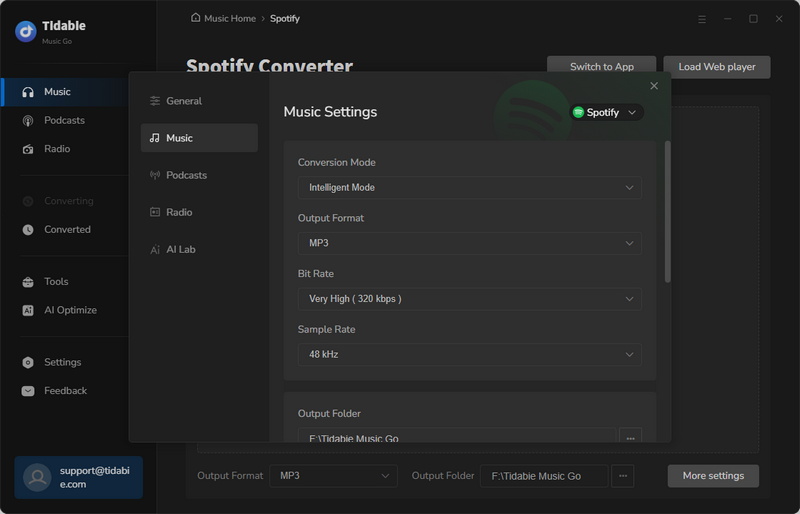
STEP 2 Open the "Settings" menu in the lower-left corner. Under "Music Settings", choose your preferred output format, such as MP3, AAC, WAV, or ALAC. For direct import into the Apple Music app, choose a compatible format such as MP3, AAC, or ALAC. You can also customize the output folder, file names, and folder organization. To keep your original playlist order, select Playlist under Output Organized and include Playlist Index in Output File Name.
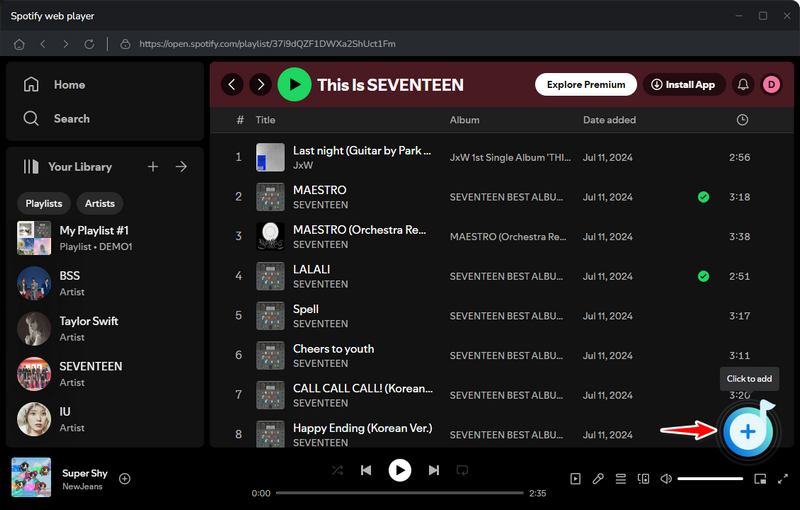
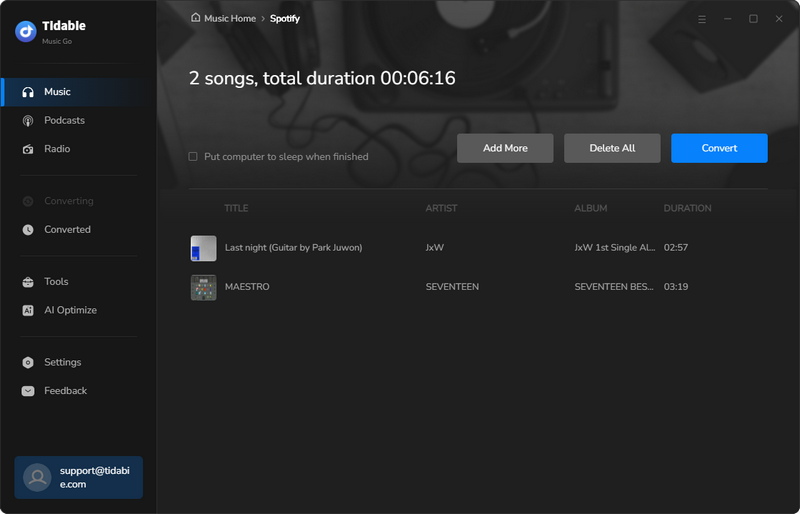
STEP 3 Go to the Music tab and find the Spotify playlist you want to download. Click the "+" button in the lower-right corner to parse the playlist.
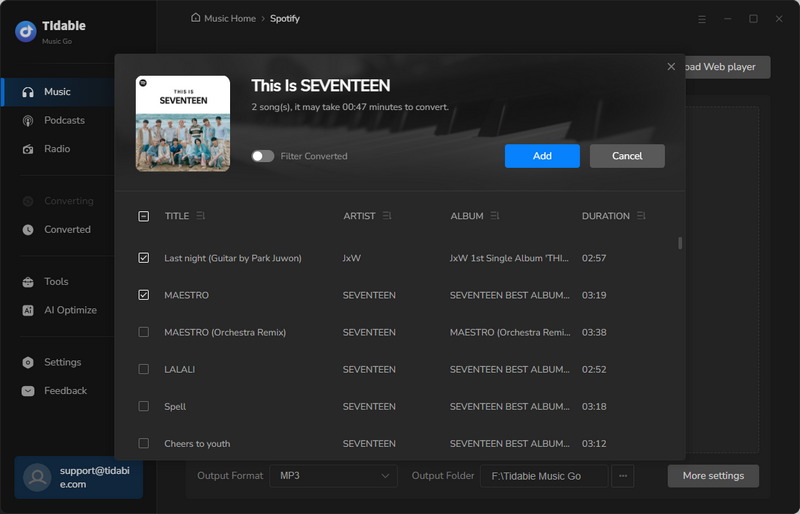
STEP 4 Once the playlist has been parsed, select the songs you want and click "Add" to add them to the download list.
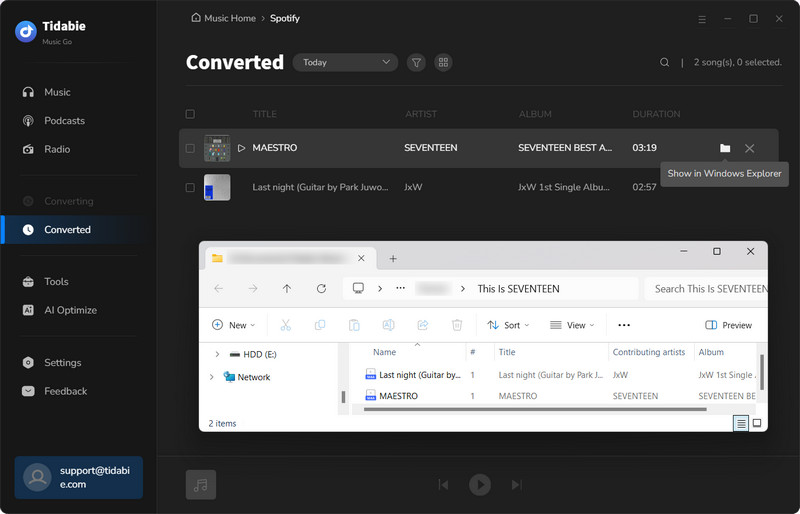
STEP 5 Click "Add More" to include additional playlists or albums for batch downloading. Click "Convert" to start downloading the selected Spotify tracks. When the process is complete, open the "History" section and click the folder icon next to a downloaded track to locate the saved audio files on your computer.
How to Import Downloaded Spotify Music into Apple Music?
After downloading your Spotify playlists, the next step is to add the local audio files to Apple Music. The process is slightly different on Windows and macOS.
On Windows
STEP 1 Open the iTunes app on your Windows PC.
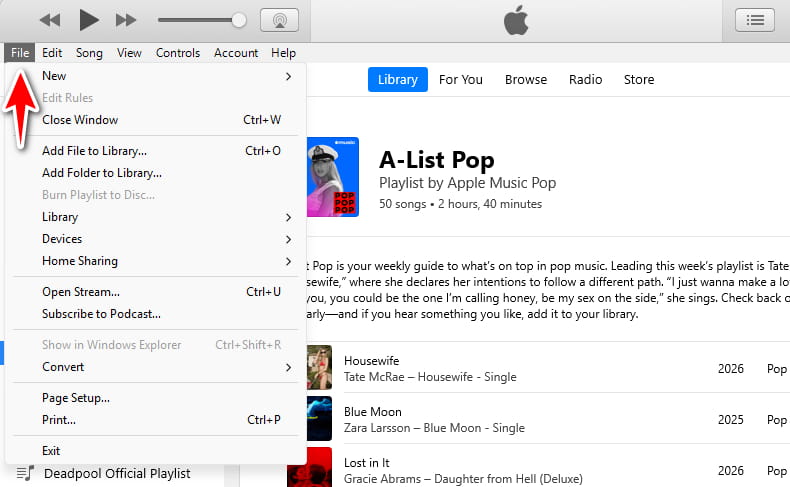
STEP 2 Click "File" at the top of the sidebar. Choose "Add Folder to Library" or "Add File to Library".
STEP 3 Browse to the output folder where Tidabie Music Go saved your Spotify downloads. Select the folder or individual audio files and click "Open" to import them into your Apple Music library.
STEP 4 After importing, create a new playlist in iTunes by clicking the "+" button next to Playlists and selecting "New Playlist". Name it after your original Spotify playlist, then add the corresponding imported tracks by dragging them into the playlist.
On Mac
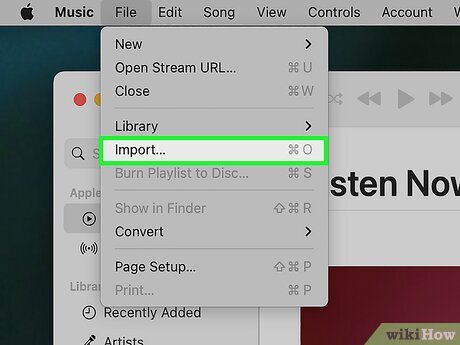
STEP 1 Launch the Music app on your Mac and open the "File" menu.
STEP 2 Choose "Import", locate the folder containing your downloaded Spotify tracks and click "Open".
STEP 3 Once the songs appear in your music library, select the tracks you want to organize. Choose "File" > "New" > "Playlist" to create a new playlist, or drag the selected songs into an existing playlist.
STEP 4 Rename the playlist to match your original Spotify playlist. Repeat the process for other downloaded playlists to complete your music library migration.
Note: Importing local audio files does not automatically recreate your Spotify playlists. You need to create playlists in Apple Music and add the corresponding tracks manually. If you want to access your imported music across multiple Apple devices, you can also turn on Sync Library when available.
FAQs About Spotify to Apple Music Playlist Converters
1. How Can I Transfer Spotify Playlists to Apple Music for Free?
If you already have an Apple Music subscription, you can use its built-in music transfer feature at no additional cost. Alternatively, dedicated playlist converters such as FreeYourMusic, Soundiiz, and TuneMyMusic offer free transfer options. FreeYourMusic offers free one-time transfers without a fixed song-count limit, while Soundiiz allows up to 200 selected tracks per transfer and TuneMyMusic provides a free allowance of 500 tracks.
2. Can I Transfer Spotify Playlists to Apple Music Without Losing Songs?
Most Spotify to Apple Music playlist converters can match the majority of your tracks, but no tool can guarantee a 100% match because Spotify and Apple Music have different music catalogs. Songs may be unavailable due to regional restrictions, licensing differences, or different versions of recordings.
3. Can I Transfer Spotify Liked Songs to Apple Music?
Yes. Some playlist converters support transferring Spotify Liked Songs in addition to regular playlists, such as PlaylistGo and FreeYourMusic, although the exact transfer options depend on the tool and music service.
4. Can I Transfer Spotify Playlists to Apple Music as MP3 Files?
Direct playlist converters generally transfer song information and match tracks in the Apple Music catalog rather than downloading actual audio files. If you want local audio files, Tidabie Music Go provides a different workflow. It can download supported Spotify playlists in MP3, AAC, WAV, FLAC, AIFF, and ALAC formats, which you can then import into Apple Music.
5. Can I Transfer Spotify Playlists to Apple Music Without an Apple Music Subscription?
No. Direct transfers into your Apple Music library generally require an active Apple Music subscription. However, you can still import compatible local audio files into the Music or iTunes app without a subscription. Tidabie Music Go can help you create local audio files from supported Spotify content.
Conclusion
Choosing the right Spotify to Apple Music playlist converter depends on your music library size, device, and transfer needs. PlaylistGo is worth considering for large playlist transfers and local playlist management, while TuneMyMusic, Soundiiz, SongShift, and FreeYourMusic provide convenient online or mobile solutions. If you prefer working with local audio files, Tidabie Music Go offers an alternative download-and-import workflow. Choose the method that best fits how you want to organize and enjoy your music on Apple Music.

Jacqueline Swift | Senior Writer

