


How to Convert Apple Music to WAV Losslessly
Apple Music offers millions of songs for streaming, but the files are typically protected and stored in compressed formats. This makes it difficult for users who want higher audio quality or more flexibility outside the app. That's why many people explore Apple Music download online and seek ways to convert Apple Music to WAV, particularly when working with professional audio tools or when offline playback is required.
In this guide, we'll walk you through what makes WAV different, whether it's actually possible to convert Apple Music songs to WAV, and the most effective ways to get Apple Music as WAV files with iTunes and Apple Music converters.
Part 1. Why Choose WAV? WAV VS MP3
WAV is an uncompressed audio format developed by Microsoft and IBM. It stores raw audio data without reducing file size, which means it keeps every detail of the original recording. Unlike compressed formats, WAV files do not discard any sound information, making them ideal for editing, mixing, and professional use.
When people consider Apple Music to WAV, the main reason is sound quality. WAV files offer a lossless listening experience, which is especially important if you are using high-end headphones or working in audio production. While Apple Music streams in high quality, it still uses compressed formats, so converting Apple Music to WAV can give you more control over how the audio is used and stored.

🔍Looking to keep high-quality audio without compression? Tidabie Music Go offers a simple way to download and convert Apple Music into WAV, ALAC, and more. Click the button for a free trial!👉
In addition, WAV files are widely used in professional environments because they maintain consistent quality across different platforms and editing tools. Unlike compressed formats, there is no need to worry about decoding loss or compatibility issues during processing. This makes WAV a preferred choice not only for music enthusiasts but also for content creators who require stable and accurate audio performance.
Here's a quick comparison to better understand WAV vs. MP3:
| WAV | MP3 | |
|---|---|---|
| File Size | Larger | Smaller |
| Compression | Lossless | Lossy |
| Quality | Higher | Lower |
| Compatibility | High | Very high |
| Bit Rate | Often 1,411 kbps | 96~320 kbps |
| Sample Rate | 44.1~96 kHz | 8~48 kHz |
| Editing | More flexible | Less flexible |
In short, if quality matters more than storage space, WAV is the better choice.
Part 2. Can You Convert Apple Music to WAV
Yes, but not in the way you might expect. Apple Music tracks cannot be directly converted to WAV using official tools. Apple Music streaming content is protected by DRM, which restricts how the files can be accessed and used. Even when you download songs for offline listening, they remain encrypted and can only be played within the Apple Music app. This means you cannot export them or convert them into standard formats like WAV through built-in features.
However, the situation is different if you own the files. Purchased songs from iTunes or audio files you've imported into your library are not restricted in the same way. These can be converted to WAV using iTunes or the Apple Music app, as shown in Part 4.
For streaming content, though, a different approach is required. This is why many users turn to dedicated tools that can process Apple Music tracks and convert them into standard audio formats while keeping the original quality and metadata intact. In the next part, we'll look at one of the most efficient ways to do this.
Part 3. Best Way to Get Apple Music as WAV Files
Since Apple Music does not allow direct conversion of its streaming content, choosing the right method becomes essential. While there are different tools available, not all of them offer stable performance or consistent audio quality. In this section, we'll look at a reliable solution that can handle Apple Music tracks efficiently and export them as standard WAV files for flexible use.
Tidabie Music Go is a desktop application designed to download and convert audio from major streaming platforms into common formats, including WAV, MP3, AAC, FLAC, ALAC, and AIFF. It supports a wide range of sources, including Apple Music, Spotify, Amazon Music, YouTube Music, Tidal, Deezer, and more, making it a flexible option for users who want to manage their music beyond streaming apps.
Tidabie Music Go can process songs, albums, and playlists in batches, and it keeps important details like ID3 tags, artwork, and lyrics. The conversion speed can reach up to 10x faster than real-time, which is helpful when dealing with large libraries. It also includes extra features such as a built-in audio editor, format converter, AI audio splitter, and more, which add value beyond basic downloading.
Tidabie Music Go
- Download songs, albums, and playlists from Apple Music, Spotify, Amazon Music, TIDAL, YouTube, SoundCloud, Qobuz, etc.
- Convert Apple Music to ALAC, MP3, AAC, WAV, FLAC, and AIFF.
- Batch download music at up to 10x speed with original quality.
- Keep full ID3 tags such as title, album, and artist.
- Freely enjoy podcasts online and download podcasts.
- Listen to radio shows and record radio freely.
How to Convert Apple Music to WAV with Tidabie Music Go?
With the right tool, the process becomes simple and efficient. Just follow the steps below to convert your Apple Music tracks to WAV.
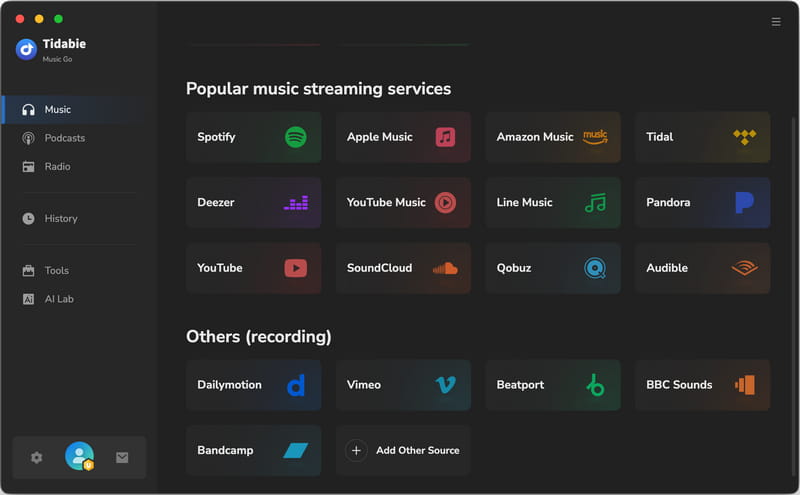
STEP 1 Open Tidabie Music Go on your computer and go to the "Music" section. Choose "Apple Music" as your source. You will be asked to log in to your Apple Music account through the pop-up "iTunes App (Music App) / Apple Music web player". Once logged in, your Apple Music library will load.
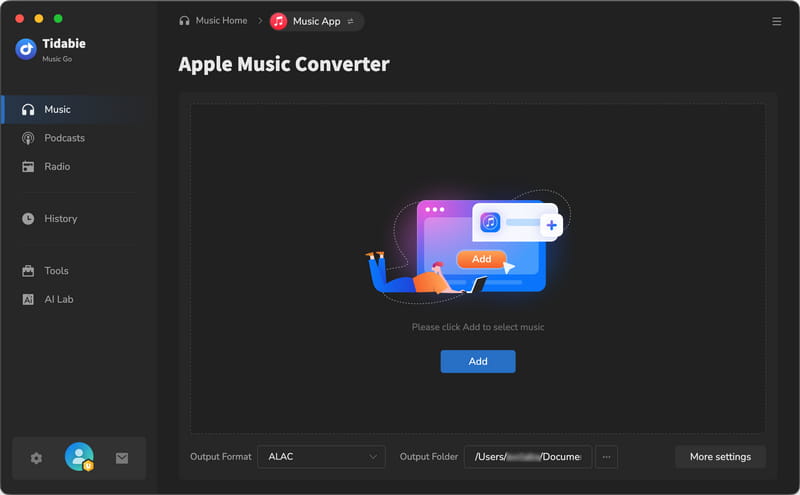
STEP 2 Browse and find the content you want to convert. Click the "+" button in the bottom right to parse it. Tidabie will then display all available tracks. You can review the list and choose specific songs. Then click "Add".
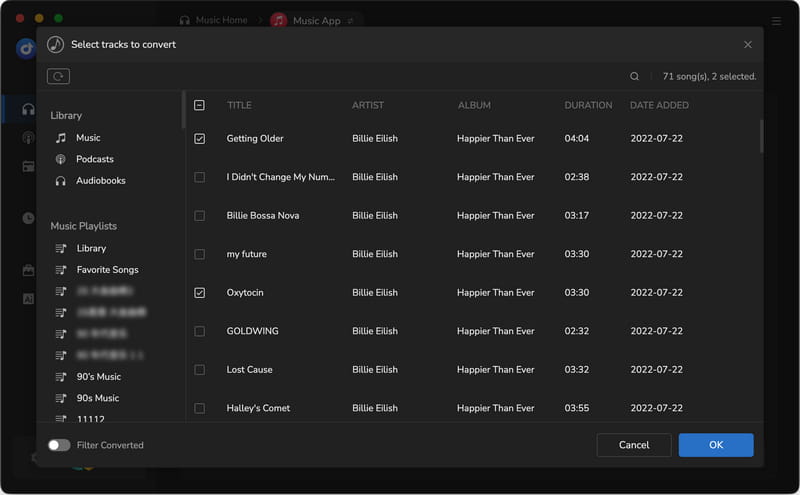
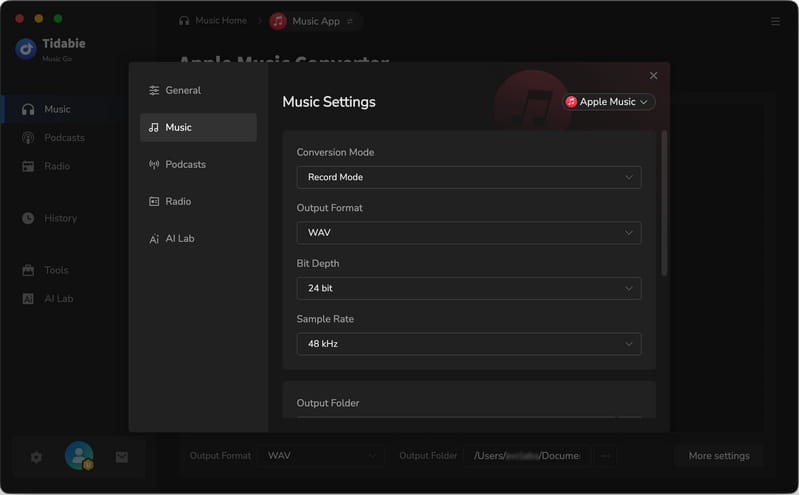
STEP 3 Click the "Settings" button to open the configuration panel. Select "WAV" as your output format. You can also adjust parameters such as conversion mode, bit rate, sample rate, etc.
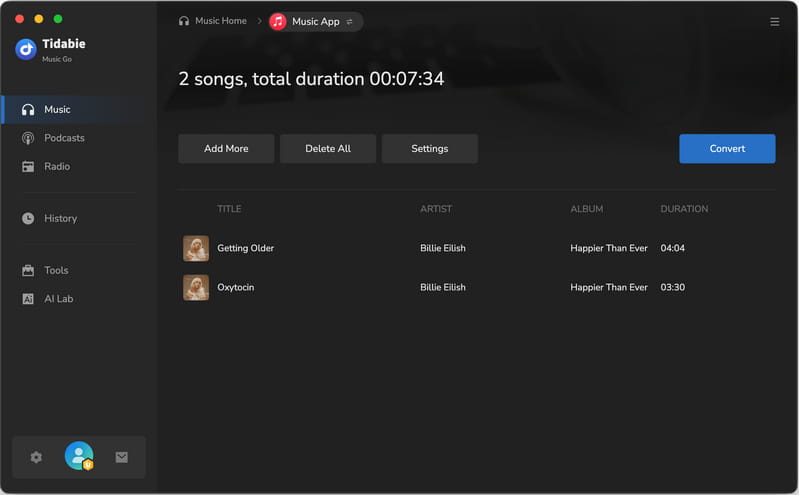
STEP 4 After confirming your settings, return to the task list and click the "Convert" button. Tidabie will begin processing the tracks and convert them into WAV files.
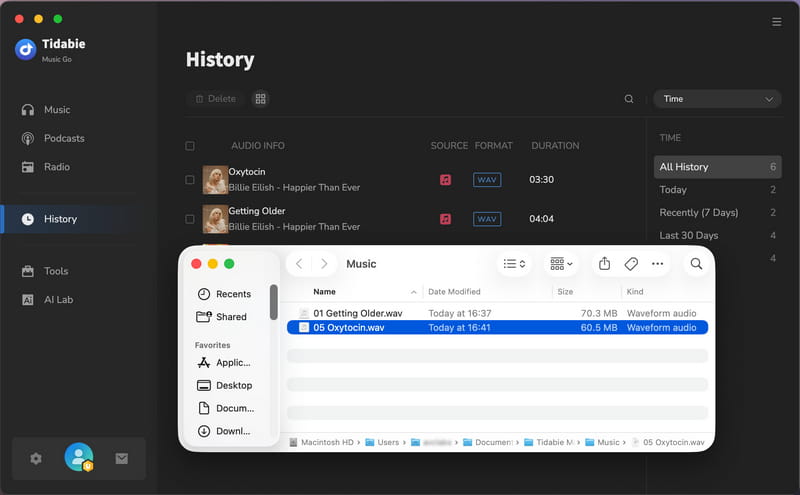
STEP 5 When the conversion is complete, the output folder will open automatically. You can also access it by clicking the folder icon next to the song title in the "History" section. You can now use the WAV files for playback, editing, or transfer to other devices. The files are saved locally, so they remain accessible even without an active Apple Music subscription.
Part 4. How to Convert Songs to WAV with iTunes
If you have songs that are not protected by DRM, such as purchased tracks or imported audio files, you can use iTunes (or the Apple Music app on Mac) to convert them into WAV format. This method is simple and does not require any additional software.
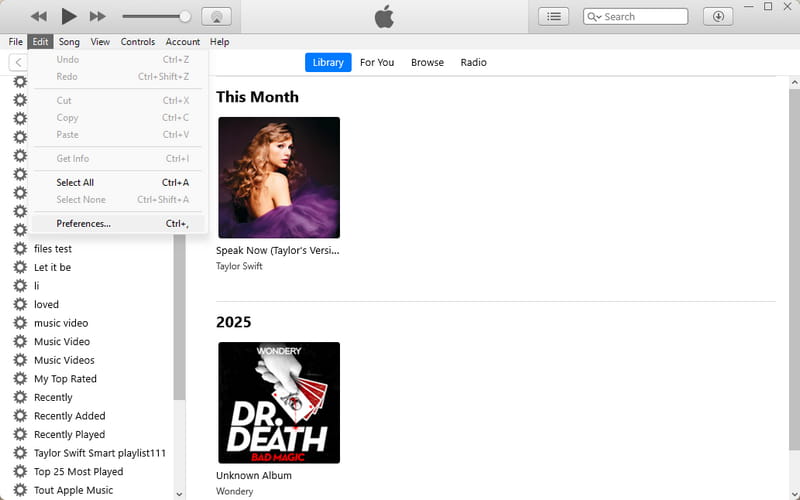
STEP 1 Launch iTunes and go to "Edit", then click "Preferences".
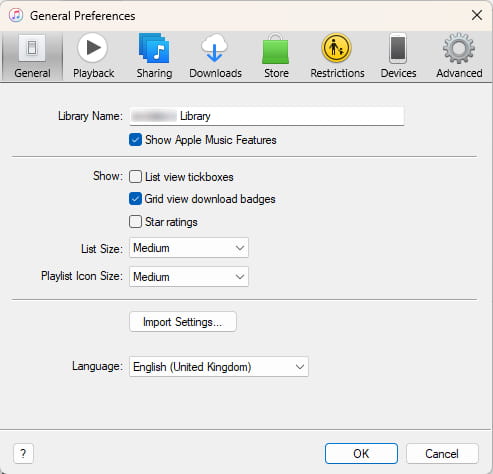
STEP 2 Under the "General Preferences" tab, click on "Import Settings".
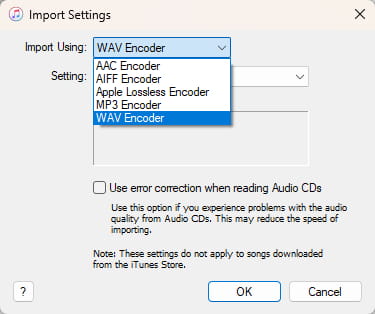
STEP 3 In the dropdown menu, choose "WAV Encoder" and confirm your selection. This step ensures that all future conversions will be saved in WAV format.
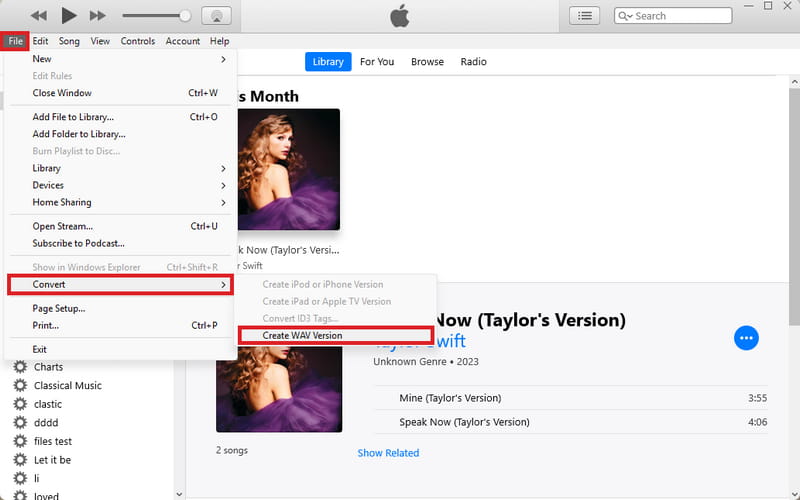
STEP 4 Make sure the songs you want to convert are already in your library. If not, you can import them manually. Select the track, then click on "File", choose "Convert", and select "Create WAV Version". iTunes will begin converting the file, and the new WAV version will appear alongside the original track.
FAQs about Apple Music to WAV
Q1: Can I convert Apple Music songs to WAV for free?
It depends on what type of music you have. If the songs are purchased from iTunes or imported from your local files, you can use iTunes to convert them to WAV at no cost. However, Apple Music streaming tracks are protected by DRM, so they cannot be converted directly using official tools. In such cases, a dedicated Apple Music converter, such as Tidabie Music Go, is typically required to complete the process.
Q2: Will converting Apple Music to WAV improve audio quality?
No. It does not actually improve the original audio quality. WAV is a lossless format, which means it preserves the sound exactly as it is during conversion. If the source audio is already compressed, such as standard Apple Music streams, the output will not gain additional detail.
Q3: Why are my converted WAV files so large?
WAV is an uncompressed format, so file sizes are much bigger than MP3 or AAC. A single song can take up tens of megabytes depending on the sample rate and bit depth. This is normal. If storage space is a concern, you may want to consider formats like ALAC, which keep high quality but use less space.
Q4: How to download all music on Apple Music?
Apple Music does not offer a single "download all" button for your entire library. But you can download everything in batches within the app. The most practical way is to organize your music into playlists or use the Library view. First, tap the "+ Add" button next to songs, albums, or playlists you want to download in the Apple Music app, so they appear in your Library. Then, go to the "Library" at the bottom of the screen. Choose a category such as Songs, Albums, or Artists. For example, tap Songs, then tap the three-dot menu in the top corner, and select the download icon to save all listed items.
Q5: Can I keep my Apple Music songs after canceling the subscription?
It depends. Songs downloaded through Apple Music are not permanent files. They are tied to your subscription and protected by DRM, which means they can only be played within the app while your subscription is active. Once it ends, those tracks will become unavailable, even though they may still appear on your device. In practice, tools like Tidabie can make it. They allow you to export tracks as regular audio files, so you can keep and use them even after your subscription ends.
Conclusion
Apple Music files in WAV format offer greater flexibility and control, especially for users who want to go beyond the Apple Music app. In this guide, we’ve explained what makes WAV different, why direct conversion is limited, and how both iTunes and third-party solutions can help depending on your needs. While iTunes is suitable for local files, it does not support streaming content. For users who want to keep their music accessible in the long term and use it without platform restrictions, tools like Tidabie Music Go provide a practical way to convert and save tracks as standard audio files. Download Tidabie Music Go to start building your own music library.

Jacqueline Swift | Senior Writer
