


How to Download Apple Music in Lossless ALAC Format
Since Apple introduced Apple Music lossless audio at no extra cost in 2021, millions of users have been eager to experience studio-quality sound on their favorite devices. But many realize that enabling lossless audio is just the first step. The lossless music you download from Apple Music through official channels is encrypted and tied to your subscription. If you cancel it, they're gone.
That's exactly why finding a reliable way to download Apple Music as permanent files matters. This guide covers everything you need to know: which devices support lossless, how to turn on lossless audio in Apple Music, and most importantly, how to keep lossless Apple Music forever. Let's read on.
- Part 1. Introduction to Apple Music Lossless Audio
- Part 2. Which Devices Support Apple Music Lossless Audio?
- Part 3. How to Turn on Lossless Audio in Apple Music?
- Part 4. Official Way to Get Lossless Audio on Apple Music
- Part 5. Download Apple Music to Lossless ALAC and Enjoy Forever🔥🔥🔥
- FAQs about Apple Music Lossless Download
Part 1. Introduction to Apple Music Lossless Audio
If you care much about sound quality, Apple Music lossless audio is one of the most valuable features Apple has introduced in recent years. Since 2021, this streaming giant has offered its entire catalog using Apple Lossless Audio Codec (ALAC) at no extra cost to subscribers, making high-fidelity music accessible to millions.
But what does "lossless" actually mean? Most audio compression formats, like standard AAC or MP3, achieve small file sizes by discarding some of the original audio data. Lossless compression, on the other hand, preserves every single bit of the original recording. This means you hear music exactly as the artist intended in the studio.
Apple Music offers two tiers of lossless streaming:
- Lossless: Up to 24-bit/48 kHz (CD quality)
- Hi-Res Lossless: Up to 24-bit/192 kHz, which requires external equipment, such as a digital-to-analog converter, to play.

🔍Tired of losing access to downloaded lossless Apple Music songs? Download this powerful tool to play Hi-Res lossless music on any device without restrictions!👉
Part 2. Which Devices Support Apple Music Lossless Audio?
The good news is that Apple Music lossless audio is supported across a wide range of hardware. Check the table below to see if your device makes the cut and what you need for the best experience.
| Lossless Support | Hi-Res Support | Requirements | |
|---|---|---|---|
| iPhone / iPad | ✔️ | External DAC required | iOS/iPadOS 14.6+ |
| Mac | ✔️ | 14/16-inch MacBook Pro supports 96 kHz natively; Others need external DAC |
macOS 11.4+ |
| Android Devices | ✔️ | External DAC required | Latest Apple Music app |
| Windows PC | ✔️ | External DAC required | Apple Music app |
| Apple TV 4K | ✔️ | ❌ | tvOS 14.6+; HDMI to AV receiver |
| HomePod / HomePod mini | ✔️ | ❌ | Latest software update |
| Apple Vision Pro | ✔️ | ✔️ | visionOS; Built-in speakers or specific AirPods |
| CarPlay (USB) | ✔️ | Depends on vehicle | USB connection to vehicle |
| AirPods Max (USB-C) | ✔️ | Wired mode only | USB-C cable to iPhone/iPad/Mac |
| Other Bluetooth Headphones (AirPods, Beats, etc.) |
❌ | ❌ | N/A |
Part 3. How to Turn on Lossless Audio in Apple Music?
By default, lossless audio is disabled to conserve data and storage space. Enabling it takes just a minute. Here is how to turn on lossless audio in Apple Music on Mac and other devices.
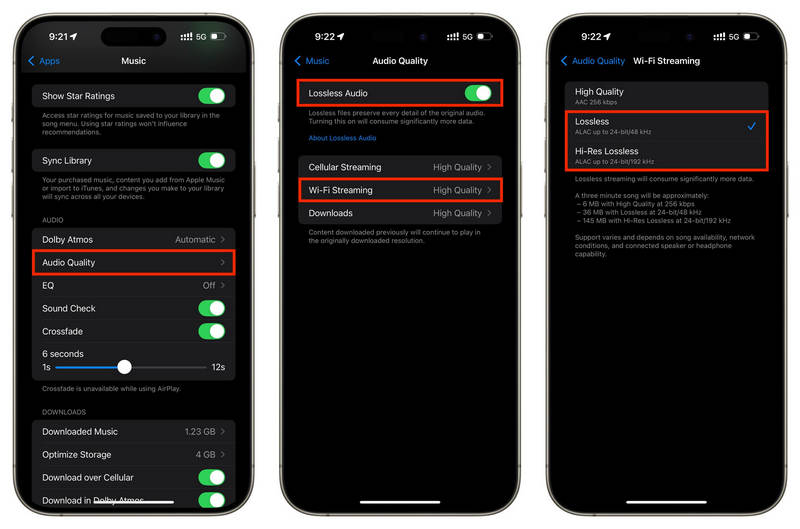
On iPhone or iPad:
STEP 1 Go to Settings > Apps > Music. Tap Audio Quality.
STEP 2 Toggle on Lossless Audio.
STEP 3 Choose your preferred quality for streaming and downloads.
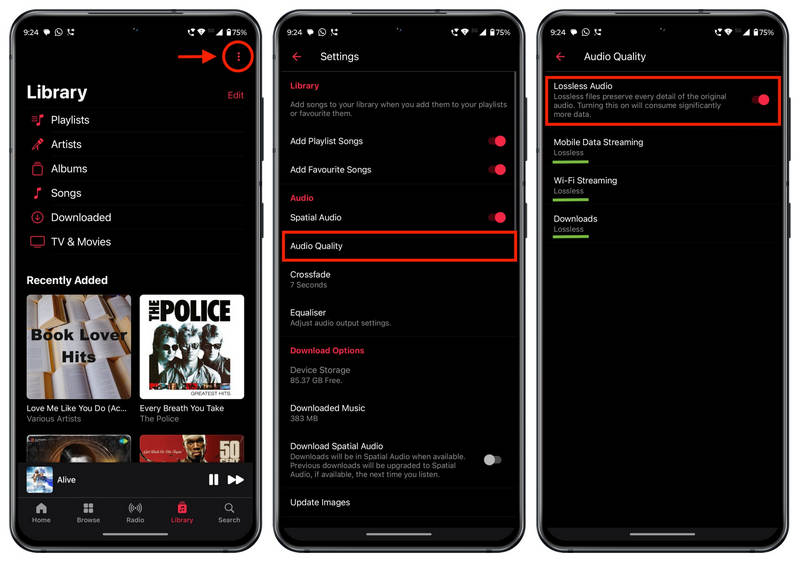
On Android:
STEP 1 Open the Apple Music app and tap the three dots icon from the top right corner, and click Settings.
STEP 2 Tap Audio Quality. Turn on the switch for Lossless Audio.
STEP 3 Set Mobile Data Streaming, Wi-Fi Streaming, and Downloads to Lossless or Hi-Res Lossless.
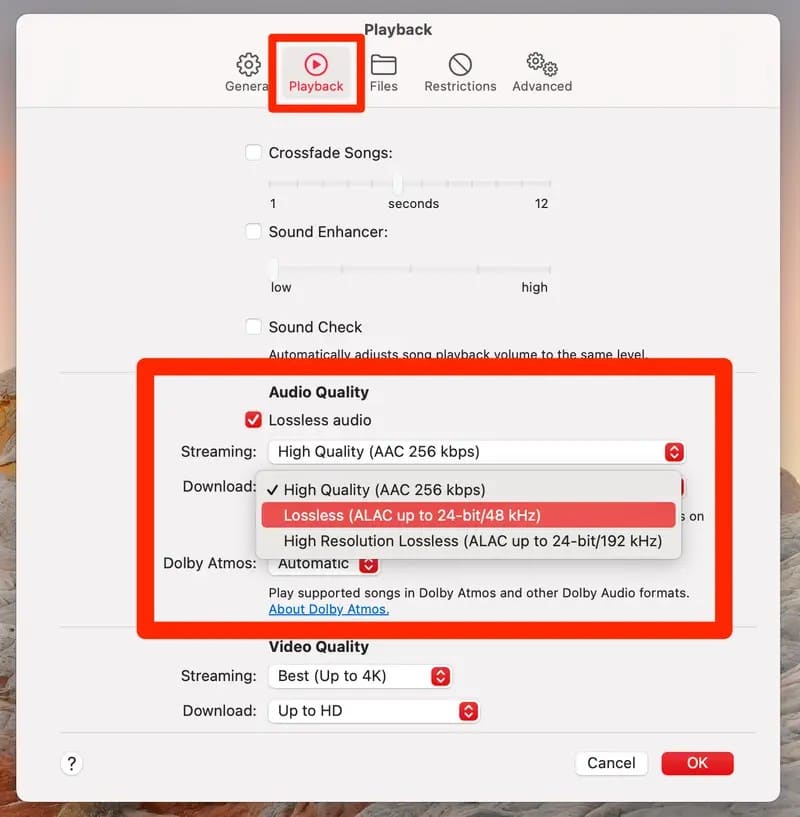
On Mac:
STEP 1 Open the Music app. In the menu bar, select Music > Preferences.
STEP 2 Click the Playback tab. Under Audio Quality, select Lossless audio to turn it on.
STEP 3 Choose your preferred quality for streaming and downloads.
📌Tips: If you are wondering how to keep enjoying Apple Music lossless audio even after canceling your subscription, jump to the detailed steps in Part 5.
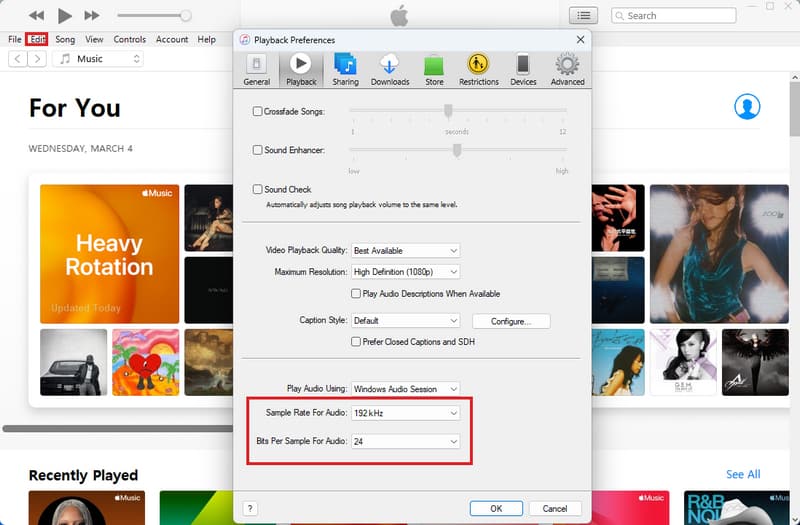
On Windows PC:
STEP 1 Open the iTunes app, then go to "For You" or "Browse" to access the Apple Music catalog.
STEP 2 At the top left corner, find "Edit > Preferences".
STEP 3 Go to "Playback", then select your options under "Sample Rate For Audio" and "Bits Per Sample For Audio".
Part 4. Official Way to Get Lossless Audio on Apple Music
Once you have enabled lossless in your settings, downloading music through the official (Apple) Music app is straightforward. This is the standard method most subscribers use when they want to listen offline.
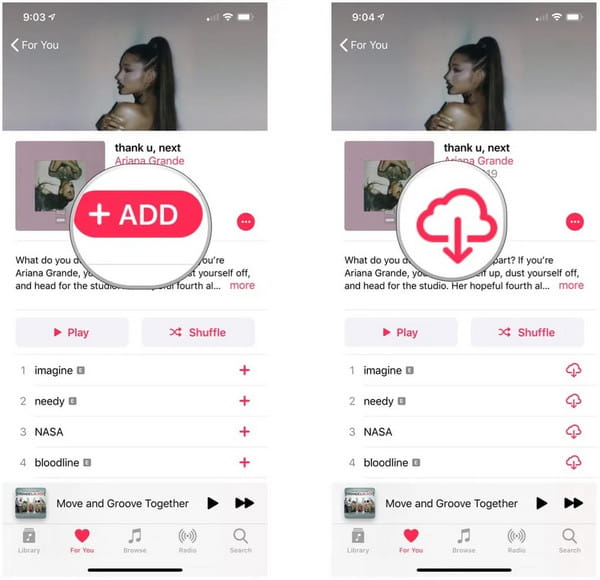
On Mobile Devices:
STEP 1 Open the (Apple) Music app on your device.
STEP 2 Navigate to the song or album you want to download. Tap the "+ ADD" button next to it to add to your library.
STEP 3 Go to "Library", then press on the download icon next to the items you'd like to download.
On Desktop:
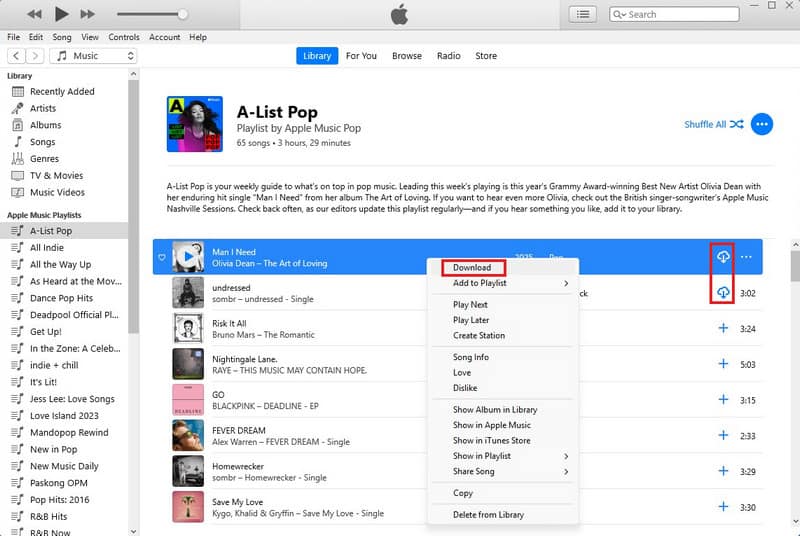
STEP 1 Open the Music app or iTunes app on your device.
STEP 2 Navigate to the Apple Music song, album, or playlist you want to download.
STEP 3 Click the download icon next to the items you want to download. Alternatively, you can move the cursor pointer to your wanted track and right-click it or tap the "..." menu, then select "Download".
Part 5. Download Apple Music to Lossless ALAC and Enjoy Forever
As you have seen, the official way to download lossless Apple Music works fine. But when your subscription ends, those encrypted files disappear, and you are left with nothing. But what if you could build a permanent library of lossless Apple Music that stays with you forever? That is exactly what the right tool can do. Let us introduce the solution that makes it possible.
Tidabie Music Go is a powerful Music downloader designed to download songs, playlists, albums, podcasts, audiobooks, and radio shows from streaming services like Apple Music, Spotify, Amazon Music, YouTube Music, Tidal, Deezer, and more. For Apple Music users, it offers Apple Music lossless downloads that you can actually keep.
With Tidabie Music Go, you can batch download Apple Music playlists to files in ALAC, MP3, AAC, WAV, FLAC, and AIFF formats at up to 10x faster speed. All ID3 tags, album artwork, and even lyrics are retained, which gives you a perfectly organized local music library. If you use Tidabie Music Go to download Apple Music lossless audio, it ensures that when your subscription ends, your music does not.
Tidabie Music Go
- Download songs, albums, and playlists from Apple Music, SoundCloud, Spotify, Amazon Music, TIDAL, YouTube, Qobuz, etc.
- Convert Apple Music to ALAC, MP3, AAC, WAV, FLAC, and AIFF.
- Batch download music at up to 10x speed with original quality.
- Keep full ID3 tags such as title, album, and artist.
- Freely enjoy podcasts online and download podcasts.
- Listen to radio shows and record radio freely.
How to download Apple Music in lossless ALAC format with Tidabie Music Go?
Follow these simple steps to perform your Apple Music lossless download and build a permanent collection of Apple Music downloader ALAC files.
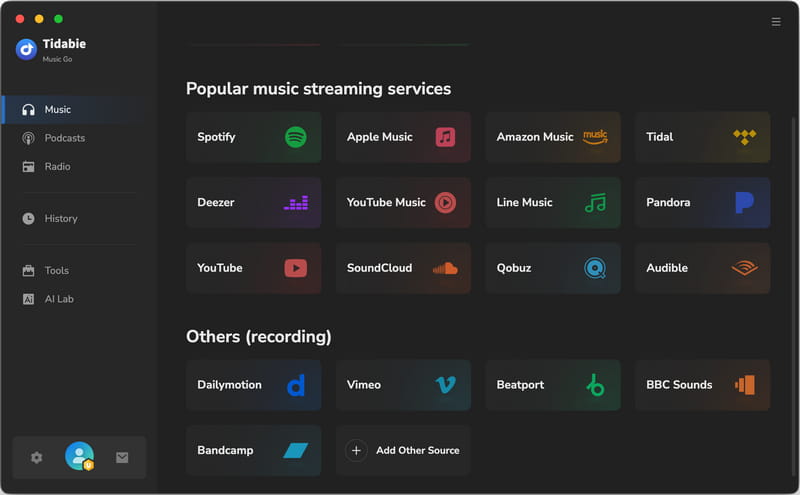
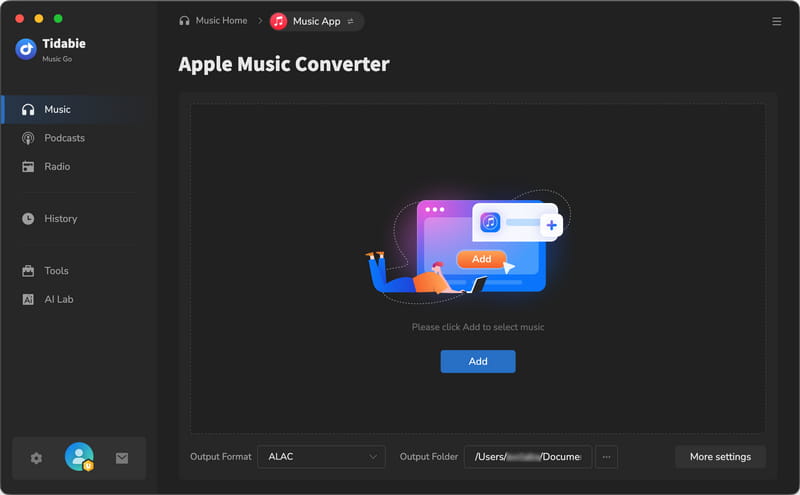
STEP 1 Launch Tidabie Music Go and select "Apple Music" from the Music module. You will be prompted to log in to your Apple Music account via the pop-up app or web player. For Apple Music lossless audio, select to download from the "iTunes App" or "Music App" at the top center of the window. Then click the "Add" button in the main interface to load your Apple Music library.
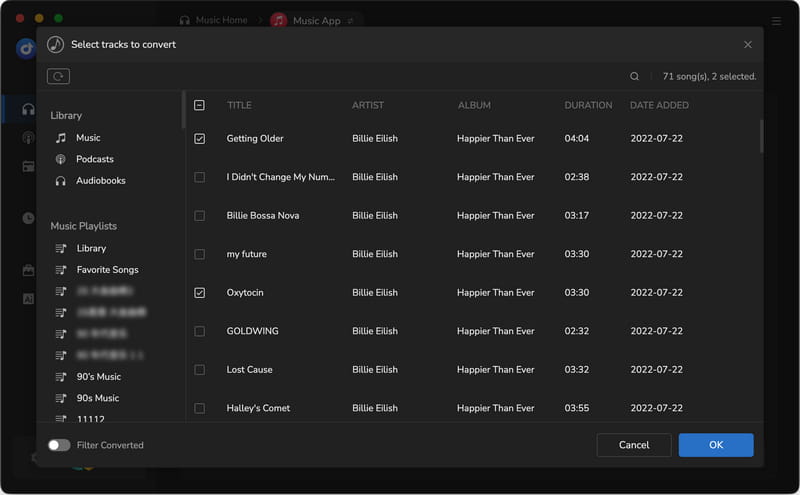
STEP 2 When your Apple Music library is loaded, browse to find and then select the songs you would like to download as ALAC files. Then click "OK" to add these songs to your download queue.
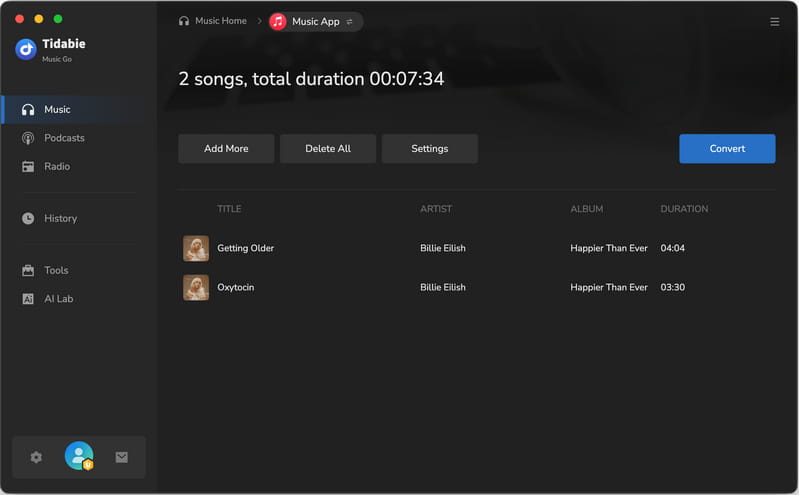
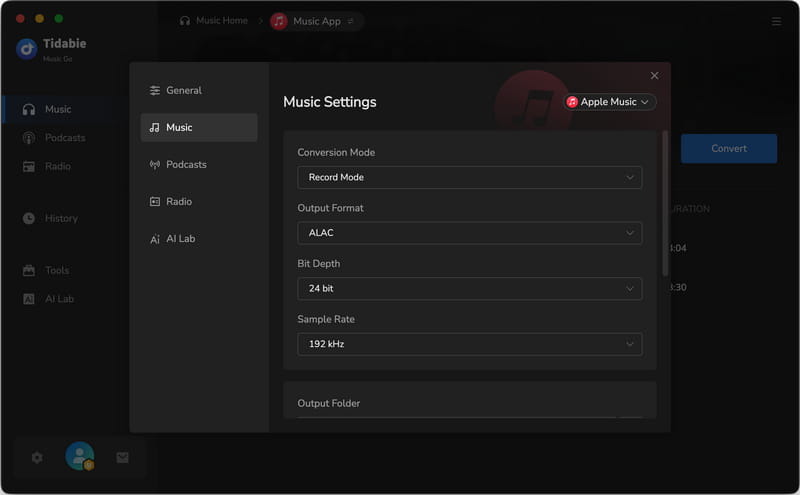
STEP 3 Click the "Settings" button or the gear icon in the lower left corner to go to the settings panel. Here you can customize your preferences for Apple Music lossless downloads. To ensure the highest quality for Apple Music, set your "Conversion Mode" to "Record Mode" here. Then, you can choose between "Recommended" or "ALAC" for the output format. When you select ALAC as the output format, choose the "Bit Depth" and "Sample Rate" to your taste.
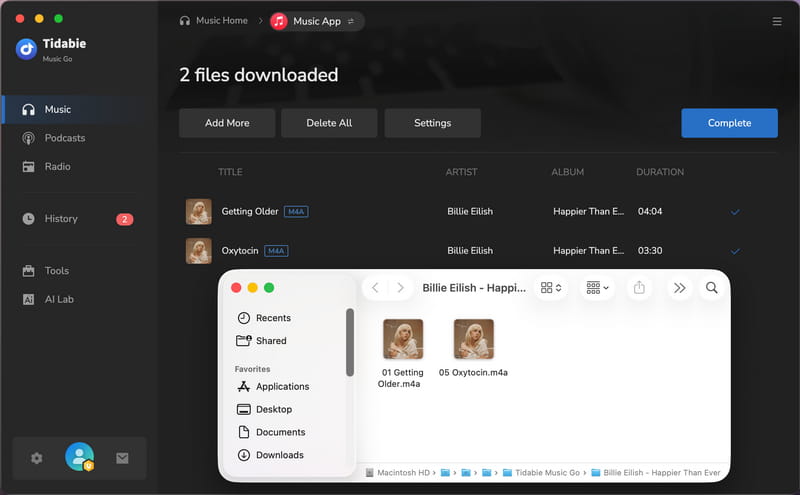
STEP 4 Once your settings are configured, close the Settings window and return to your task list. Click "Convert" to begin. When the download is complete, you can go to the "History" module. Hover over any track and click the folder icon. This will open the location where your downloaded Apple Music ALAC files are stored. All your music is now saved as ALAC files to keep forever.
FAQs about Apple Music Lossless Download
Q1: Can I download lossless Apple Music without a subscription?
Technically, no. You need an active Apple Music subscription to access and download tracks in lossless. However, if you use Tidabie Music Go to download Apple Music to ALAC format while your subscription is active, those files are yours to keep forever, even after you cancel your Apple Music subscription.
Q2: What's the difference between ALAC and FLAC?
Both ALAC and FLAC are lossless formats and preserve the original audio quality. The main difference is compatibility. ALAC works seamlessly within the Apple ecosystem, like iTunes, iPhone, iPad, and Mac, and uses the .m4a file extension. FLAC is more popular on Android devices, Windows, and many music players. If you're an Apple user, ALAC is usually the better choice for smooth integration.
Q3: Can I transfer downloaded ALAC files to my iPhone?
Yes. Officially downloaded Apple Music tracks are encrypted and won't be played outside the (Apple) Music app. However, if you use Tidabie to convert Apple Music to unprotected ALAC files, you can easily transfer them to your iPhone via iTunes sync, cloud storage, or file-sharing apps. They'll play perfectly in the native Music app or any other audio player.
Q4: Can I download my entire Apple Music library at once?
Yes, but it requires a workaround. Usually, you need to create a Smart Playlist on a computer to aggregate all songs, which can then be downloaded on your iPhone. There is no single "Download All" button in the app. If you want to save yourself the hassle and download the entire Apple Music Library at once, you can try Tidabie. It loads to your Apple Music library and allows you to select all tracks for download.
Q5: Why can't I play lossless Apple Music on AirPods?
The answer depends on which AirPods you have. For most wireless headphones, including AirPods 3, AirPods Pro, and Beats models, Bluetooth technology simply doesn't have enough bandwidth to transmit lossless audio. These headphones use AAC compression over Bluetooth. If you want true lossless quality, you need a wired connection to your device or an external DAC.
Conclusion
Streaming provides access to Apple Music lossless audio, but it does not grant ownership. This guide has covered everything from device compatibility and enabling lossless settings to official downloads. If you want to keep your music forever, not just while your subscription lasts, you need a real Apple Music lossless download solution. With Tidabie Music Go, you can convert your favorite tracks to permanent ALAC files and enjoy them anywhere. Click the button below to download Tidabie and try it now!

Jacqueline Swift | Senior Writer
